What the booker receives
The moment a booker is confirmed - by paying (paid services) or verifying (free services) - Pay2Book sends them a booking confirmed email from your account. It comes from your own address, so to the booker it looks like it came directly from you. The email itself is the same either way; only the step before it differs (see Free vs paid below).
Free vs paid
Section titled “Free vs paid”The confirmation email is the same for free and paid bookings. Only the step that triggers it differs:
- Paid booking - the booker pays at the moment of booking; once the payment clears, the confirmation is sent.
- Free booking - the booker verifies by email link or a Google/Microsoft sign-in (see Booking security); once verified, the confirmation is sent.
The calendar invite, the Join the meeting button, and the Cancel this booking link all work the same either way.
Why this is different
Section titled “Why this is different”Most booking tools add the booker as a guest on your real calendar event. That is where their problems start: every time you tweak the event, every guest gets a notification; the meeting link is baked into the invite, so changing it breaks the old one; and on a group session the guests can often see each other.
Pay2Book never adds bookers to your calendar event. Your event stays yours, with no guests on it. Each booker instead gets their own calendar invite by email, and the Join the meeting button points at a Pay2Book link rather than the raw meeting URL.
That one decision is what makes the rest work:
- You can change the meeting freely and the link never breaks. Add, swap or remove the meeting on a booking and the booker’s Join button simply starts opening the new one. The raw Meet, Teams or Zoom URL is never sitting in their inbox, so when the meeting ID or URL changes there is nothing stale to correct - and no need to notify the booker at all. They click the same Join button and it resolves to the new meeting.
- No notification spam. Because there are no guests on your event, editing or moving it does not fire a wave of “event updated” emails at anyone. The booker is notified once, with a clear message, only when something that affects them actually changes.
- No privacy leak on group sessions. Each booker’s invite contains only their own details. Bookers never see each other.
The rest of this page shows what the booker actually receives.
What the email contains
Section titled “What the email contains”Every confirmation includes:
- A Booking confirmed subject line with the service name.
- The booking details: service, date, time, who it is with, and the location if you set one.
- A calendar invite (
invite.ics) attached, so the booker can add the session to their own calendar in one tap. - A Cancel this booking link, so the booker can cancel without contacting you. This is a secure single-use link tied to their booking. Cancelling a paid booking refunds it (per your rules); a free booking simply frees the seat, as there is nothing to refund.
- For online sessions, a Join the meeting button or link.
In Gmail
Section titled “In Gmail”In Gmail, Google reads the attached invite and shows its own event chip above your message, with Directions and Invite others buttons. Your email follows underneath with the full details and the cancel link.
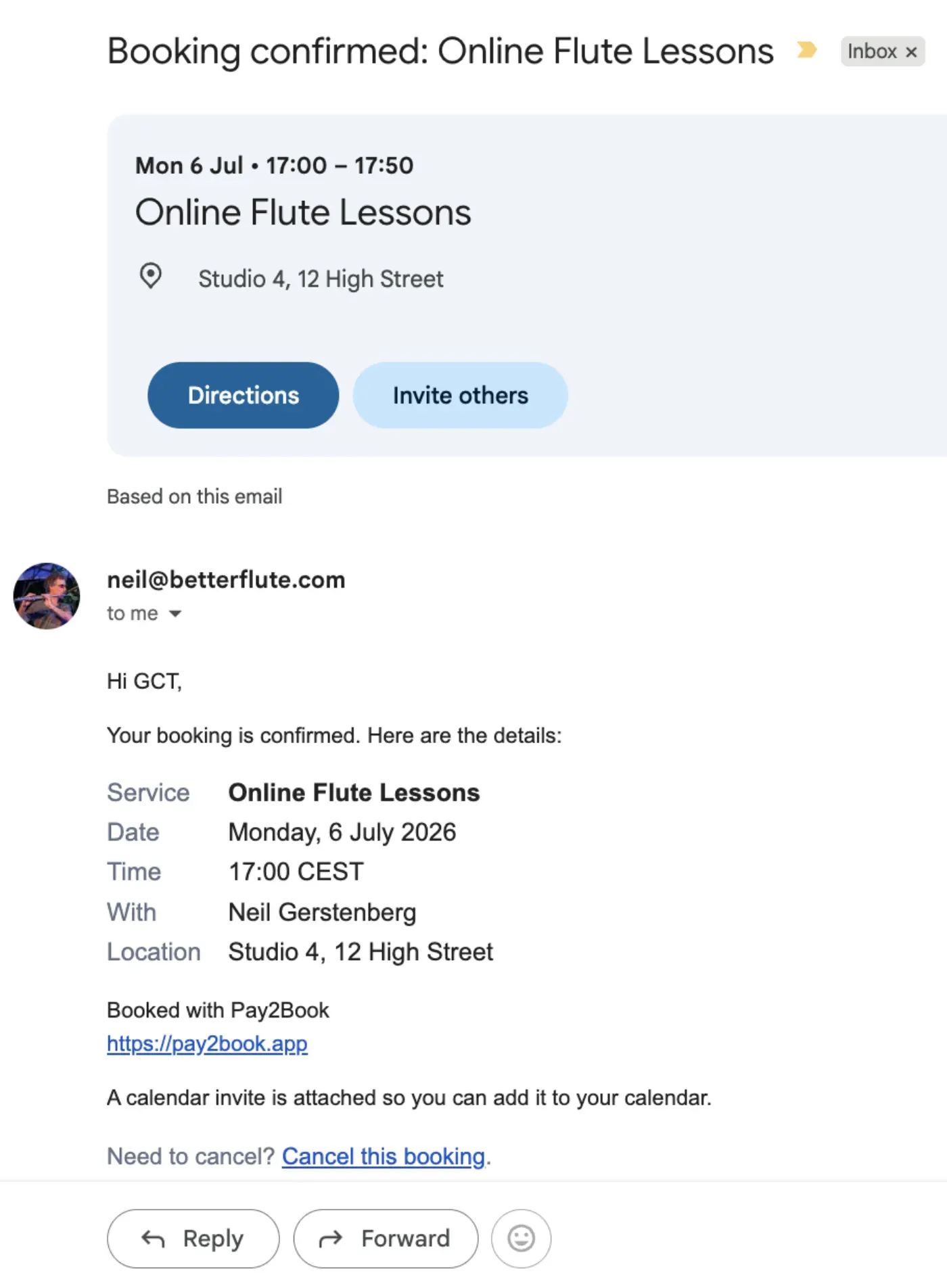
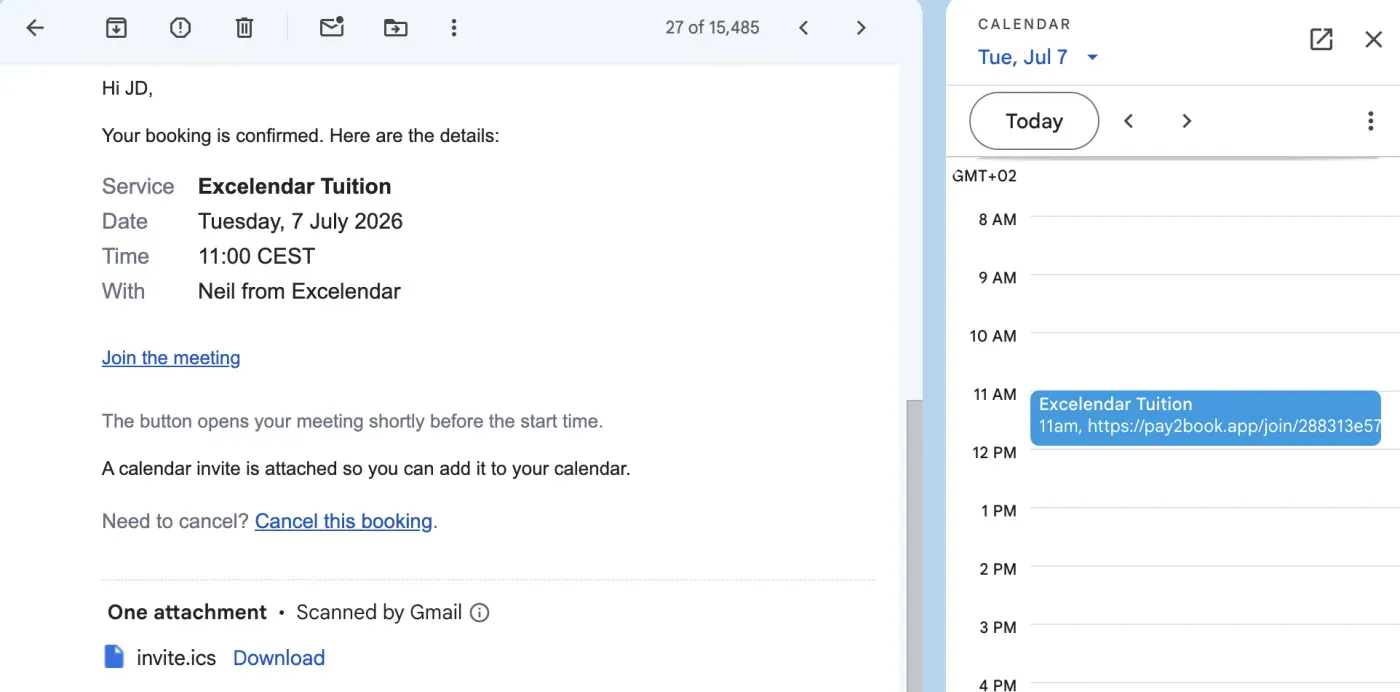
The booker can open the attached invite.ics to drop the session straight into their
calendar. Gmail also shows it in the side calendar panel.
In Outlook
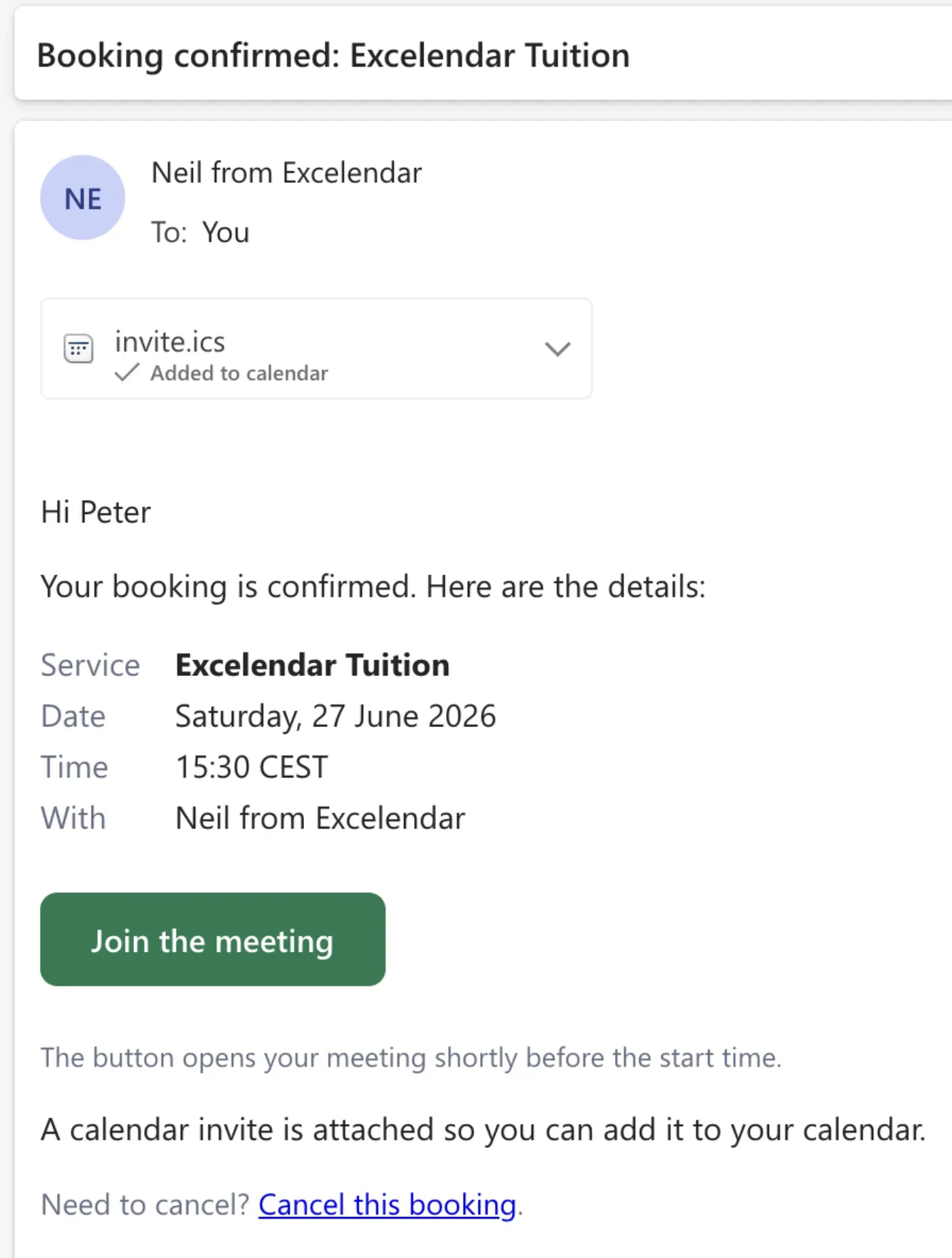
Section titled “In Outlook”Outlook adds the invite to the booker’s calendar automatically and shows Added to calendar on the attachment. The Join the meeting button appears for online sessions.
How the meeting link works
Section titled “How the meeting link works”For online sessions, the Join the meeting button does not contain the real meeting URL. It points at a Pay2Book link that resolves to your meeting only when the booker clicks it, and only when it should.
This has three benefits:
- It always opens the current meeting. If you change the meeting on a booking later, the same Join button starts opening the new one. The booker never has a stale link, and you do not have to send them a fresh URL when the Meet, Teams or Zoom meeting ID changes.
- It cannot be used early. The link opens the meeting only shortly before the start time, set by your join window. Before that, the booker sees a friendly “not yet” page instead of the meeting.
- The real URL is never exposed. Because the meeting address only resolves at click time, it is not sitting in the booker’s inbox to be forwarded or guessed.
If the booking has been cancelled, or the session has long passed, the link shows a short explanatory page rather than opening anything.
When you change a booking’s meeting
Section titled “When you change a booking’s meeting”Because the booker’s link resolves live, most meeting changes reach them without any email at all - their existing link simply starts opening the new meeting. Pay2Book only emails the booker when there is something they genuinely need to act on:
- You add a meeting to a booking that had none. The booker gets an email with their new join link and an updated calendar invite, because they had no link before.
- You remove the meeting from a booking. The booker gets an email letting them know, and their calendar invite is updated to drop the link that no longer works.
Changing an existing meeting sends no email. If a booking already has a meeting and you swap the link, switch it from a manual link to an auto-created one, or change it in any other way, the booker is not disturbed - their existing link keeps working and now opens the new meeting. There is nothing for them to do, so there is nothing to send.
Any email is sent from your account, just like the original confirmation, and updates the existing event in the booker’s calendar rather than creating a second one.