Managing bookings
The Bookings page lists everyone who has booked - paid or free - with upcoming sessions first. It is where you keep on top of your schedule and handle changes.
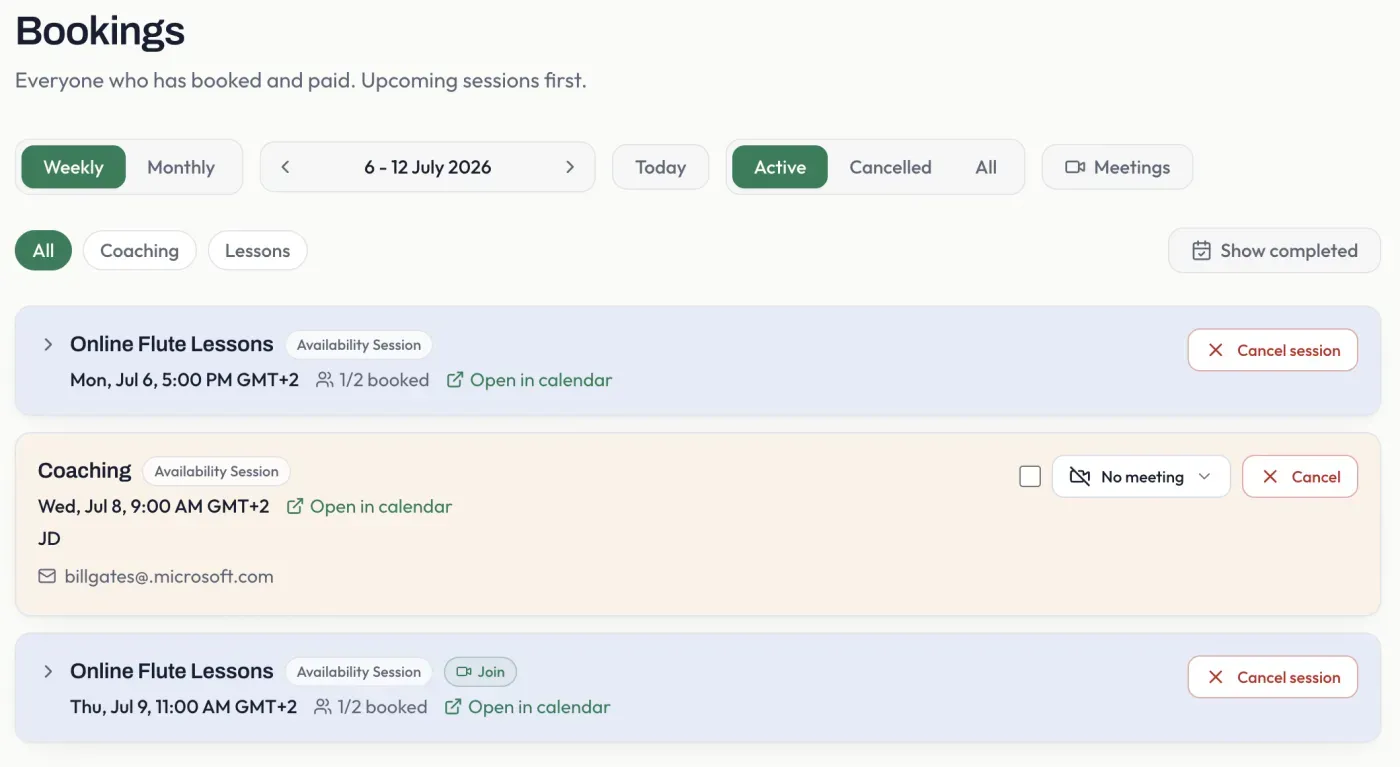
Finding bookings
Section titled “Finding bookings”- Weekly / Monthly and the date arrows move through time.
- Active / Cancelled / All filter by status.
- The category chips filter by service type.
- Show completed brings past sessions back into view (they are hidden by default).
- Open in calendar jumps to the session on your real calendar.
Cancelling and refunding
Section titled “Cancelling and refunding”- For an upcoming session, Cancel frees the seat. A paid booking is refunded (per your rules); a free booking simply frees the seat, as there is nothing to refund.
- For a whole group session, Cancel session cancels every booking on it.
- A past session cannot be cancelled - it already happened - but you can still Refund a paid booking if you need to.
Online meetings
Section titled “Online meetings”For online sessions, each booking has a meeting control. You can add an automatically created meeting (Google Meet or Microsoft Teams), add your own link for Zoom, or use the meeting already on your calendar event. When a session has a meeting, a Join button appears so you can join in one click.
The booker only needs an email when you add or remove a meeting; simply changing an existing one reaches them automatically, because their link resolves the current meeting each time they open it. That is also why editing the meeting straight on the calendar event (for example swapping Google Meet for Zoom) just works - see what the booker receives.
If you delete a meeting off the calendar event without replacing it, the session shows a “Fix meeting” button here - one click re-creates it, with no email to the booker (their link never changed).
Group sessions
Section titled “Group sessions”A group session shows how many seats are booked. Expand it to see each booker, and manage or refund them individually.