Editing a service
The service edit screen is where you control everything about a service: what it is called, where it books, how it is delivered, when it can be booked, and what (if anything) it costs. You reach it from the Edit button on any service card on the Services page.
The screen is grouped into sections, and this page walks through them from top to bottom.
Details
Section titled “Details”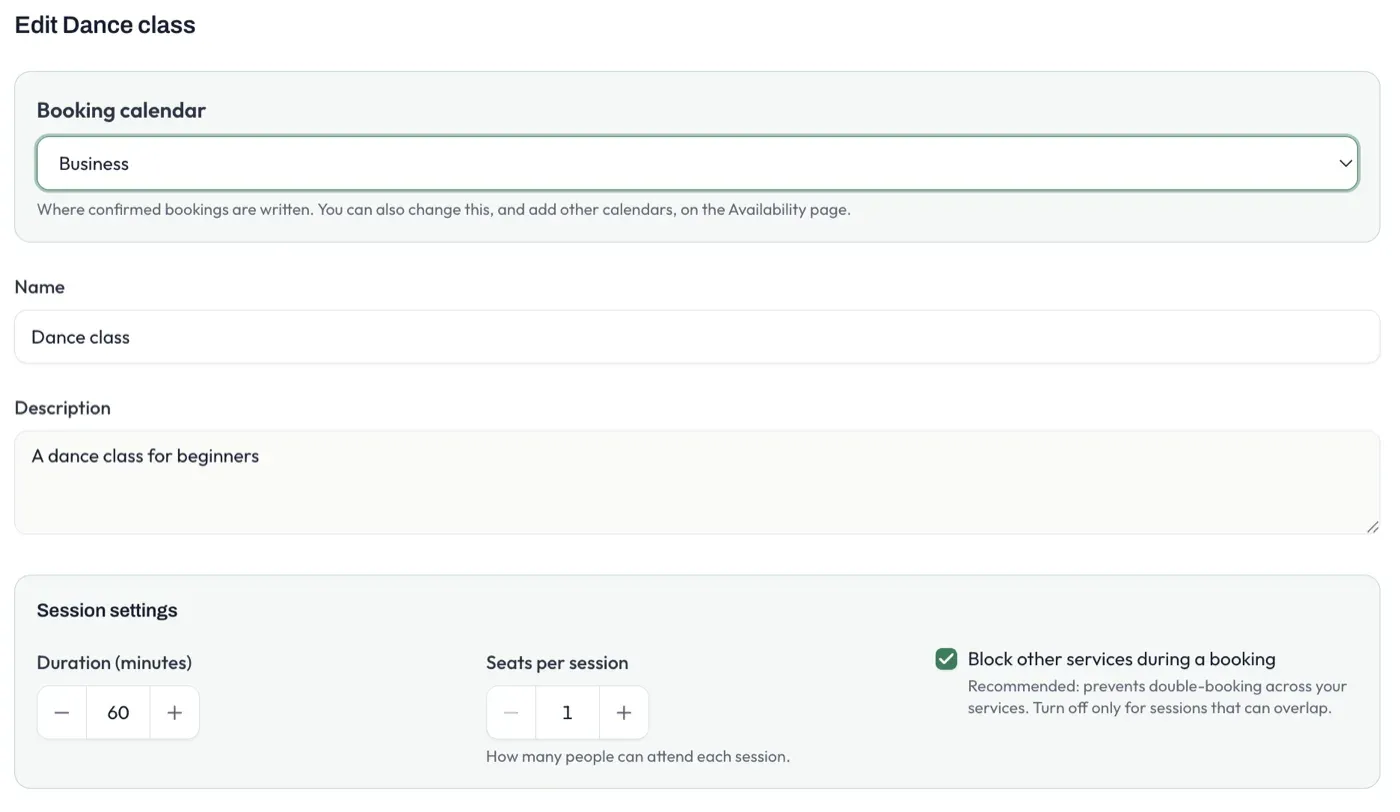
- Booking calendar - the calendar where confirmed bookings of this service are written. You can change it, and add other calendars, on the Availability page.
- Name - what bookers see for this service.
- Description - shown on the booking page and included in the calendar event and confirmation email. Use it for anything the booker should know before they arrive.
Session settings
Section titled “Session settings”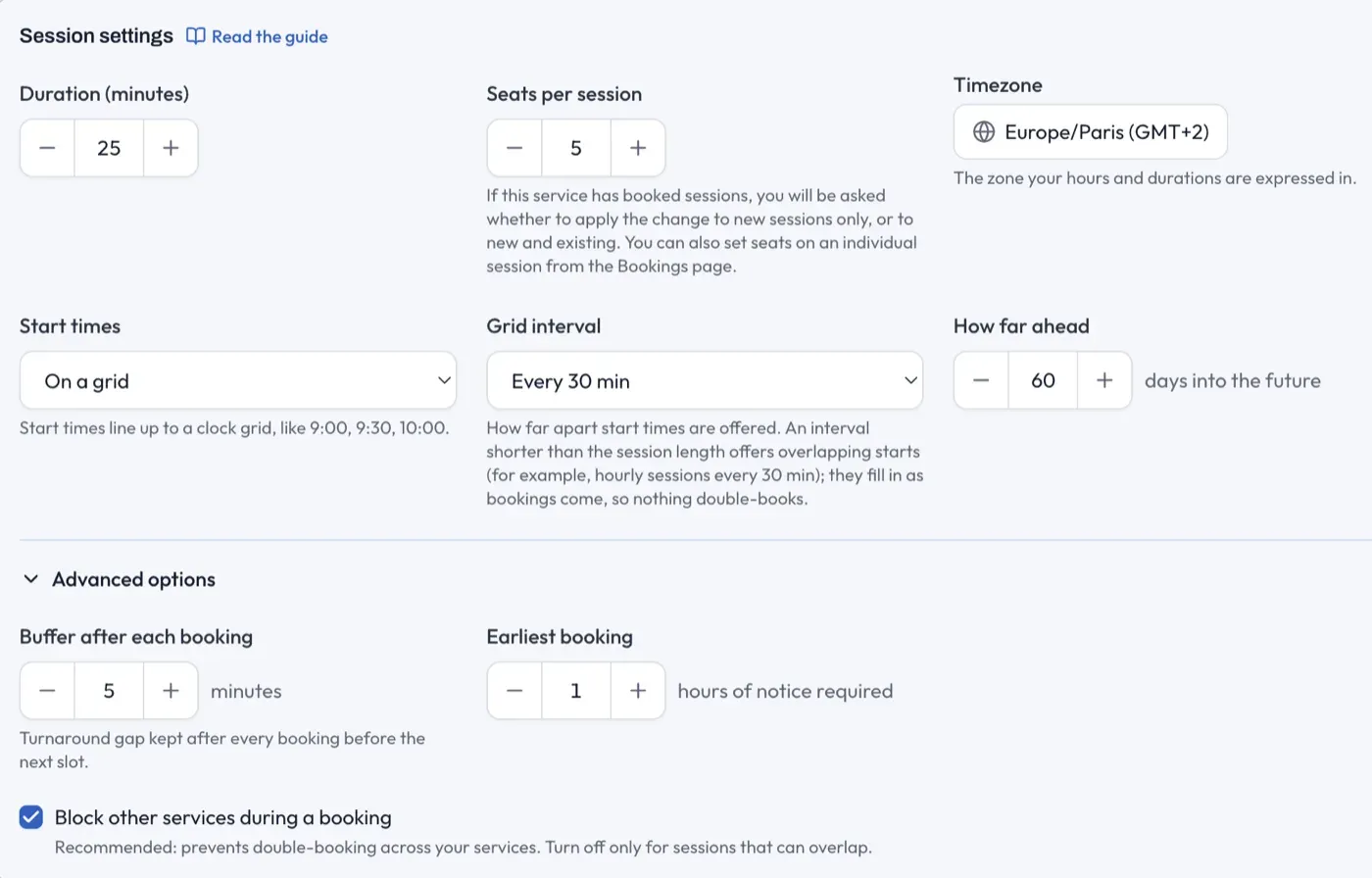
The Session settings card holds the core numbers, plus the rules that generate your availability slots. The slot rules apply to Grid sessions only - Event sessions appear exactly as you placed them.
- Duration (minutes) - how long a session lasts.
- Seats per session - how many people can book the same slot. 1 is a private 1:1 session; more than one makes it a group session.
- Timezone - the zone your hours and durations are expressed in.
- Start times - whether slots fall on a fixed grid or back-to-back from the start of your available window.
- Grid interval - how far apart grid start times are offered. An interval shorter than the session length offers overlapping starts (for example, hourly sessions every 30 minutes); they fill in as bookings come, so nothing double-books. (Shown only for grid start times.)
- How far ahead - how many days into the future bookers can book.
Advanced options
Section titled “Advanced options”The Advanced options disclosure is collapsed by default and holds settings most owners never need to change:
- Buffer after each booking - a turnaround gap kept after every booking before the next slot can start.
- Earliest booking - how many hours of notice you require before a slot can be booked.
- Block other services during a booking - when on (the default), a booking for this service blocks you from being booked for any other service at the same time.
Category and colour
Section titled “Category and colour”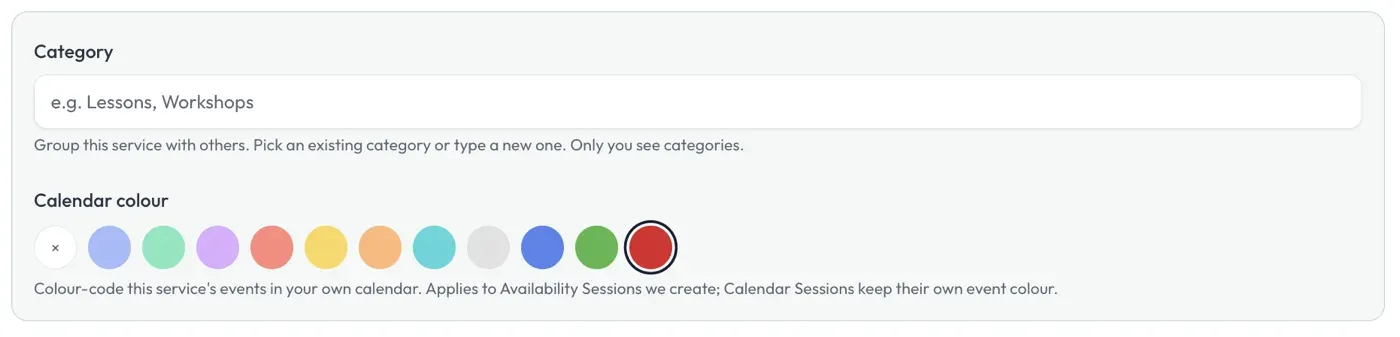
- Category - groups this service with others on your booking page. Pick an existing category or type a new one. Only you see category names.
- Calendar colour - colour-codes this service’s events in your own calendar. It applies to Grid sessions that Pay2Book creates; Event sessions keep their own event colour.
Delivery
Section titled “Delivery”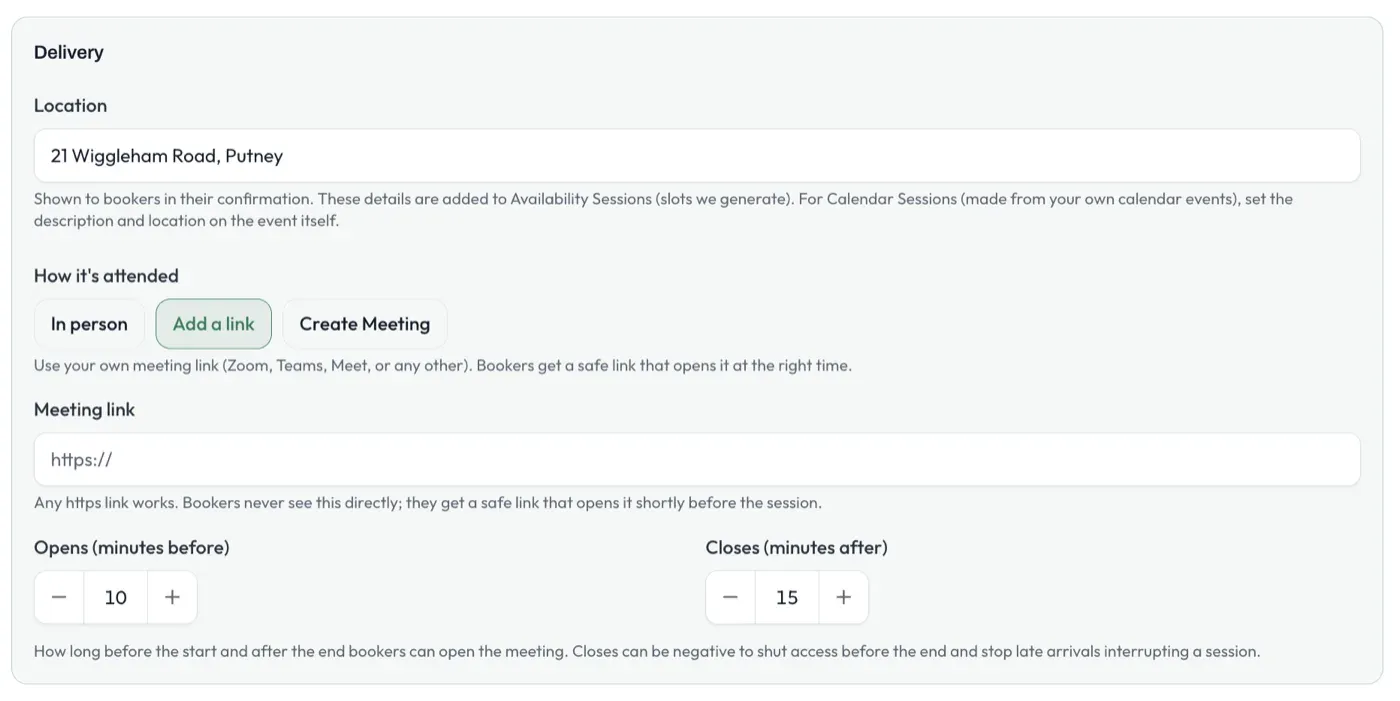
How the session is delivered - in person or online.
- Location - where the session takes place. Shown to the booker in their confirmation and added to Grid Sessions. (For Event Sessions, set the location on the event itself.)
- How it’s attended:
- In person - no online link.
- Meeting link - use your own meeting link (Zoom, Teams, Meet, or any other). Bookers get a magic link, so you can edit it at any time without notifying them.
- Online meeting - each booking gets an online meeting automatically. For Event sessions (existing events), if the event already has a meeting it is reused when possible; otherwise Pay2Book creates a Google Meet or Teams meeting. Creating meetings needs a Google account or a Microsoft work account - personal Microsoft accounts cannot create meetings automatically, so use Meeting link there instead.
- Opens / Closes (minutes) - how long before the start and after the end a booker can open the meeting. Closes can be negative, to shut access before the end and stop late arrivals interrupting a session.
Pricing
Section titled “Pricing”The last section is where you set what the service costs - or make it free.
Paid or free
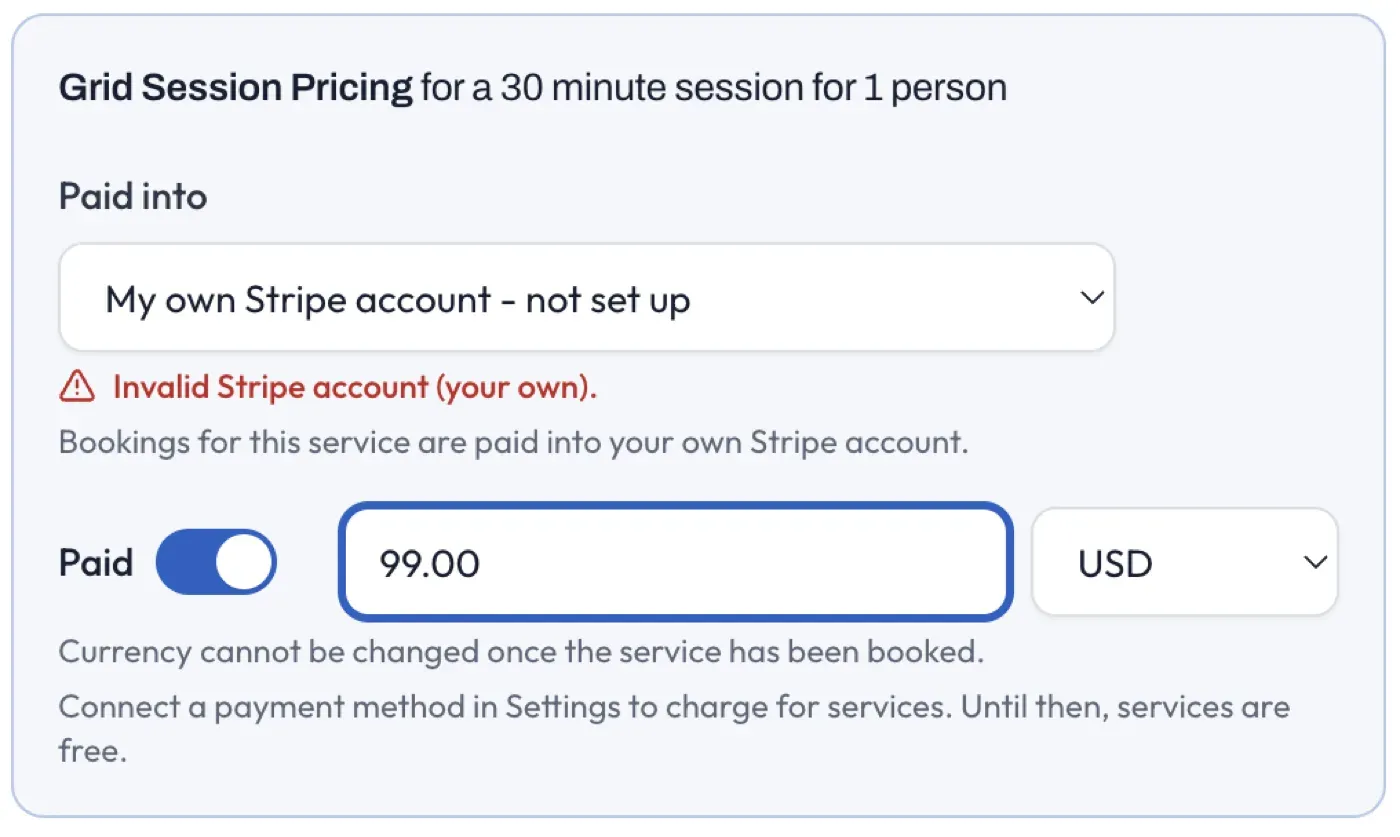
Section titled “Paid or free”In Grid Session Pricing a Paid toggle sets whether the service charges. Turn it on (the default) and you set a price and currency; turn it off to make the service free.
A free service takes no payment: the price is hidden and set to zero, and instead of paying, a booker confirms by email link or a Google/Microsoft sign-in (you choose which on the Share tab - see Booking security), behind an automatic bot check.
How many free services you can run depends on your plan: Free allows one, Starter allows two, and Pro is unlimited. Paid services are unlimited on Starter and Pro. See Plans and billing. Charging for a service needs Stripe connected - until it is, the Paid toggle can’t be turned on, and you are prompted to connect Stripe.
Grid Session Pricing
Section titled “Grid Session Pricing”For a paid service, this sets the price a booker pays per seat for a generated grid slot, and its currency.
Event Session Pricing
Section titled “Event Session Pricing”This sets how Event sessions - bookable events on your calendar - are priced (grid slots always use the price above). A free service has no pricing here.
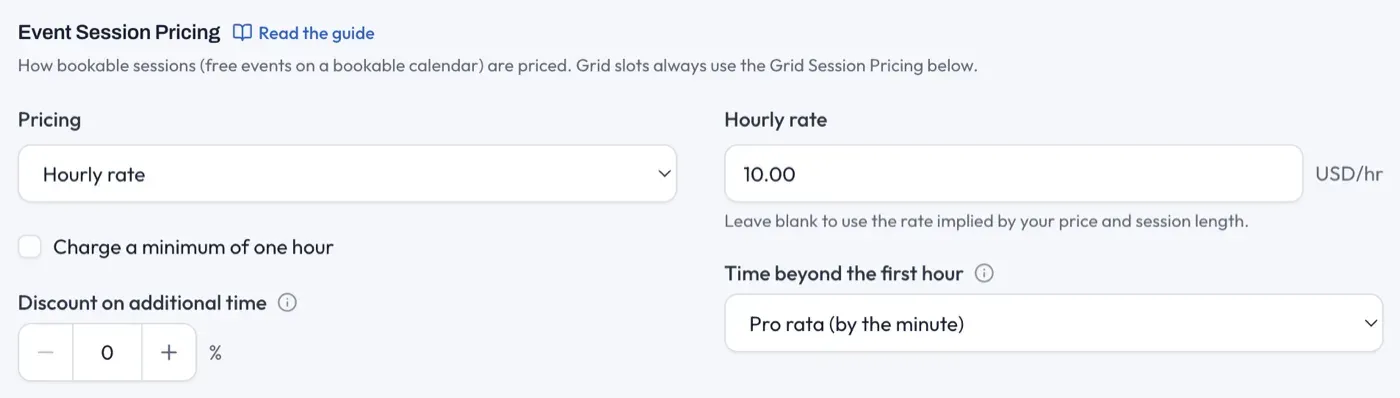
- Pricing - Flat amount per session charges the same whatever the length, or Hourly rate prices by the event’s length.
- Amount / Hourly rate - the flat amount, or the rate per hour. Leave blank to use the price above.
Hourly pricing also offers a minimum charge, a billing increment, how time beyond the first hour is billed, and an optional discount on that additional time.
Paid into
Section titled “Paid into”If you are on the Team plan with a company Stripe account, a paid service shows a Paid into choice, deciding which Stripe account collects this service’s bookings:
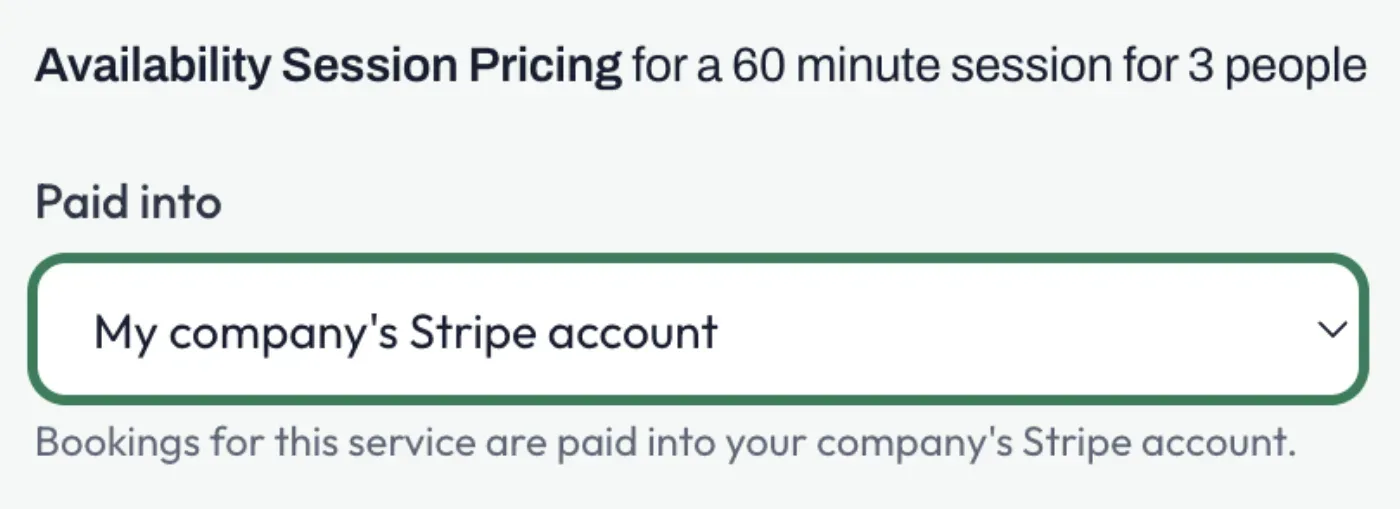
- My own Stripe account - bookings are charged on your personal Stripe, exactly as without a team.
- My company’s Stripe account - bookings are charged on the shared company account.
You set this per service, so you can run some services on the company account and others on your own. Changing it later only affects new bookings; it never moves money already taken.
Saving
Section titled “Saving”Save changes applies your edits. Discard changes drops them and leaves the service as it was. On a brand-new service (or one with no availability yet) the button reads Save and set availability, and takes you straight to the Availability page.