For Team members
This page is for seat holders on a team. It covers the Team Services your admin offers and how you set them up. For joining a team and how seats work, see The Team plan.
Team Services in your list
Section titled “Team Services in your list”Your Services list shows your own personal services and, alongside them, the Team Services your admin offers. A Team filter lets you show just the team ones.
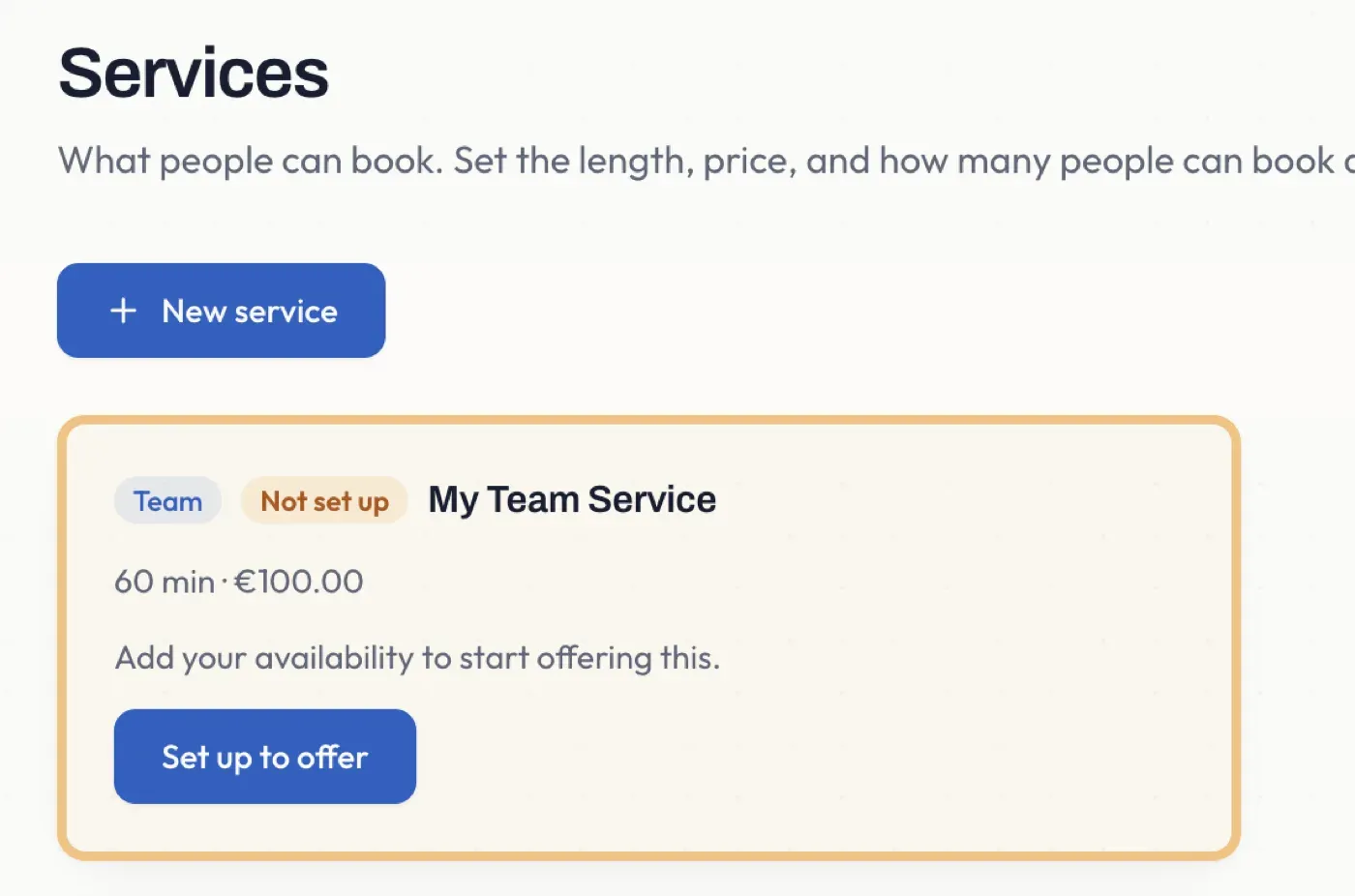
A Team Service you have not set up yet appears as an offer. Open it and Pay2Book creates your own copy, ready for you to configure - that act of setting it up is how you take it on. From then it behaves like one of your services, with a few things fixed by your team.
How a Team Service differs from your own
Section titled “How a Team Service differs from your own”The commercial identity is set by your team: price, duration, seats and session pricing, plus any fields your admin chose to lock, show read-only and are marked Set by your team. You can see them, but not change them.
What stays yours to set is the operational part - your availability (weekly hours and date overrides) and your booking target calendar - exactly as for a personal service.
So the split is simple: your team decides what the service is; you decide when and where you are booked.
Your availability decides when you’re offered
Section titled “Your availability decides when you’re offered”Your weekly hours generate your times for the Team Service, and they also feed the company booking page - the pooled availability is the union of when you and your colleagues are free. Your date overrides (Closed, or Open hours) and your busy or blocked calendars apply too, just as they do for a personal service.
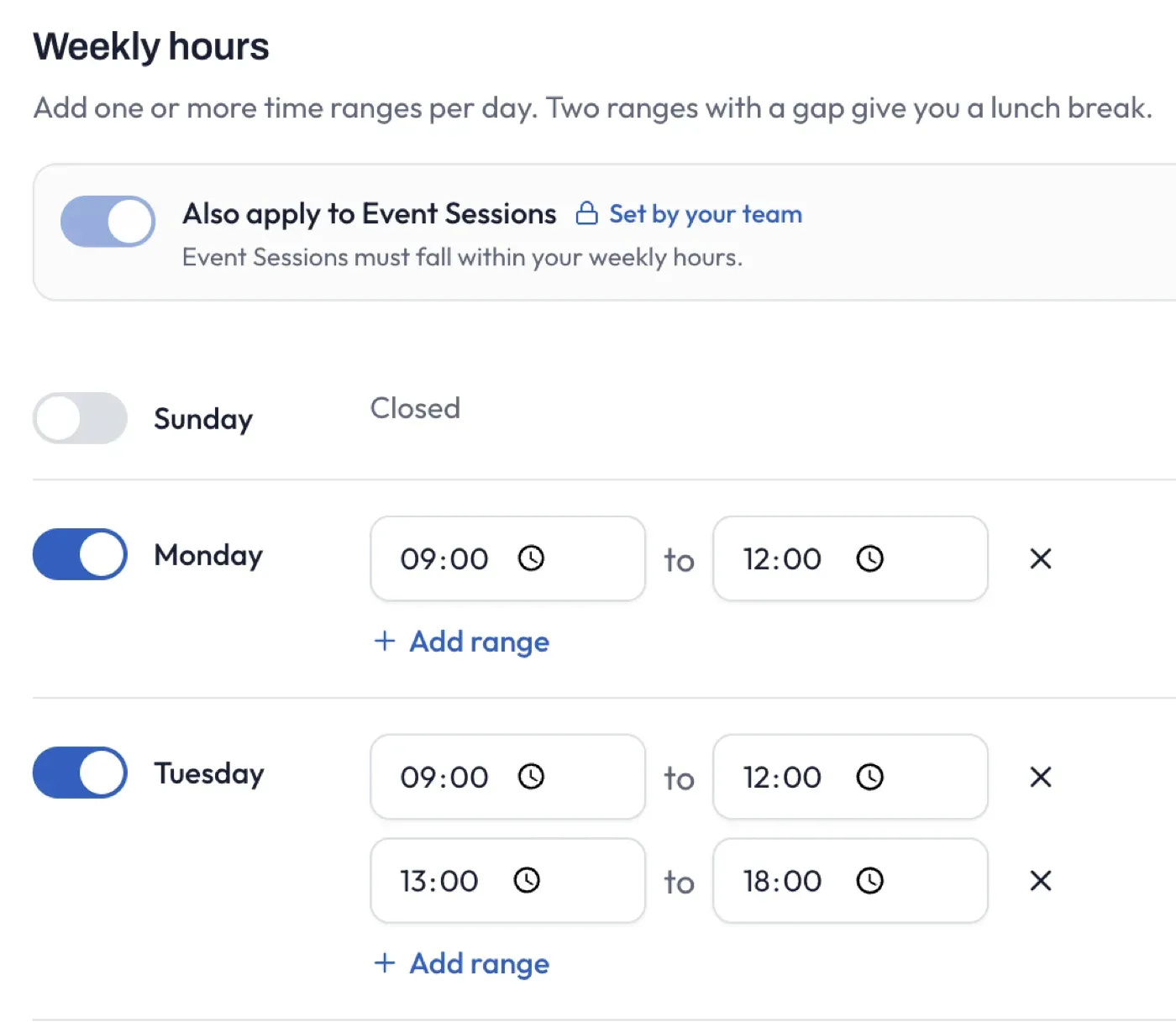
There is one important difference for Team Services. Normally, Event sessions you place yourself bypass your availability - you put the event there deliberately, so it is offered as-is. But a Team Service’s Event sessions come from your team’s calendar, not yours, so your own availability is what keeps you from being booked when you are not free. For that reason, on a Team Service your weekly hours, date overrides and busy calendars also apply to Event sessions - this is turned on for you and cannot be switched off.
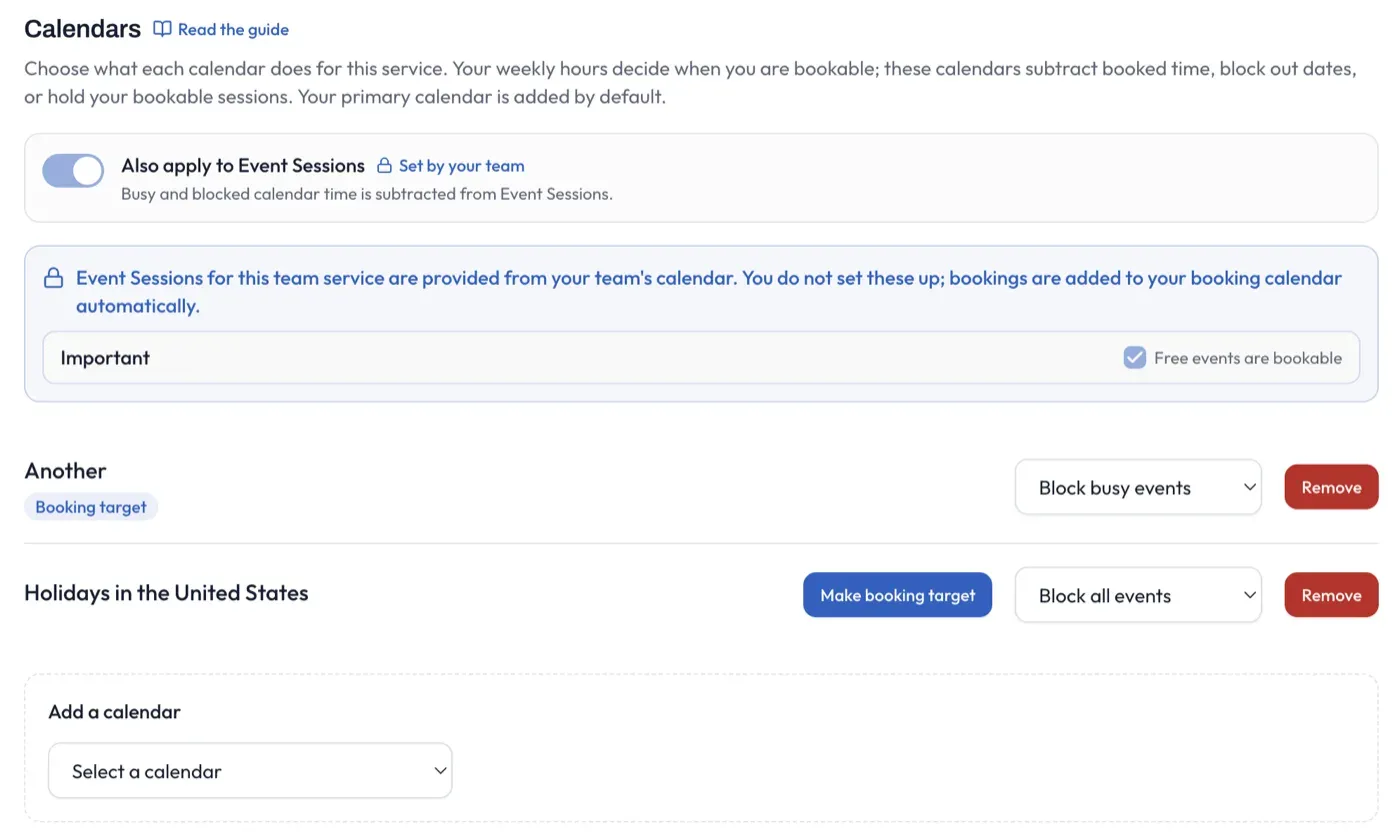
Event sessions come from your team
Section titled “Event sessions come from your team”If the Team Service offers Event sessions, they come from a calendar your admin set up - you do not mark your own calendars bookable for it. That option is hidden for Team Services, and instead you see a note telling you the sessions are provided by the team.
When someone books one, it is added to your booking target calendar automatically, so it shows up in your day like any other booking.
What you can and can’t change
Section titled “What you can and can’t change”You can edit a Team Service you have taken on, but only the parts that are yours: your availability, your booking target calendar, and any fields your admin left unlocked. The fields set by your team show read-only and are marked Set by your team.
A couple of actions are not available on a Team Service, because its shape belongs to the team:
- You cannot duplicate a Team Service. Duplicating is for your own personal services; a copy would lose the team’s settings and locks, so it is not offered.
- If your admin unpublishes the Team Service, your copy goes offline with a note that it was unpublished by your team admin. You cannot publish it back yourself - only the admin can.
If your team handles refunds
Section titled “If your team handles refunds”Bookings for a Team Service are paid into the company account, so your admin can always refund or cancel them. Whether you can refund your own company bookings is a team setting your admin controls. If they have turned it off, refunding or cancelling a company booking is handled by your admin, and you will be told so if you try. Your own personal services are never affected by this.
If your admin refunds or cancels one of your bookings, you will see a note on that booking saying so, and when - so it never just disappears without explanation.
Leaving a team
Section titled “Leaving a team”You can leave a team yourself from your My account page, where your team membership is shown.
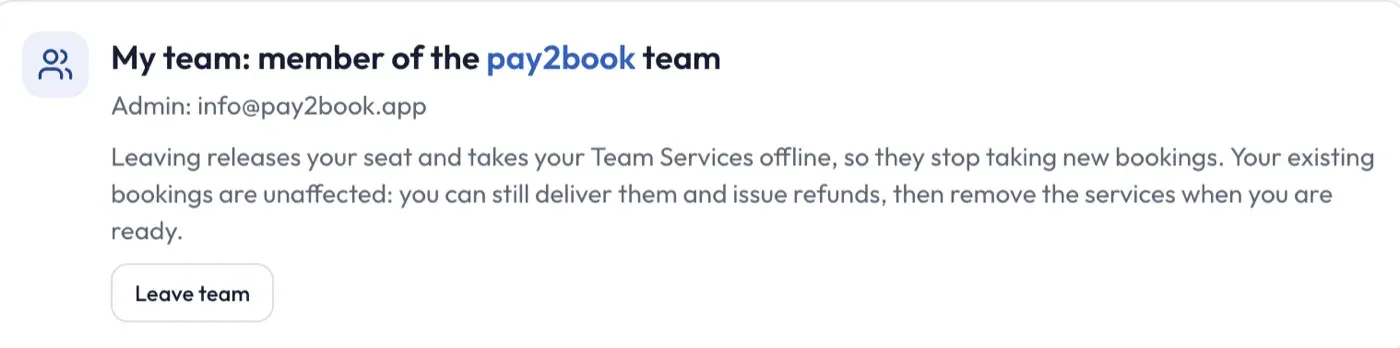
When you leave:
- Your seat is released, and your Team Services go offline - they stop taking new bookings.
- They are not deleted. Your existing bookings are kept, so you can still deliver them and issue refunds. Once everything is settled, you can delete the offline services yourself.
- To rejoin later, you need a fresh invite from the admin.
Your own personal services are completely unaffected by leaving - they carry on exactly as before.
Where your Team Service bookings are paid
Section titled “Where your Team Service bookings are paid”Bookings for a Team Service are paid into your team’s company account, not your own Stripe - that is part of what your seat covers. Your own personal services are unaffected and continue to be paid however you have set them up. See Team payments for the full picture.