For Team admins
This page is about Team Services: services you define once as the admin and offer to your members, so several people book under one shared identity. For buying seats, the join link, and approving members, see The Team plan. For how money flows, see Team payments.
What a Team Service is
Section titled “What a Team Service is”A Team Service is a service you define once and offer to your members. You set its fixed identity - what it is called, what it costs, how long it runs - and each member who takes it up gets their own copy in their own account. They add the one thing only they can: their own availability and their own calendar.
That gives bookers two ways to book it:
- On a member’s own booking page, exactly like any of that member’s services.
- On the company booking page, which pools every member’s availability into one place, so a booker sees the combined times and is routed to whoever is free.
The difference from a Personal Service is ownership. A Personal Service is yours alone. A Team Service is shared: you own its commercial identity for the whole team, and each member owns only their own availability and target calendar.
Creating a Team Service
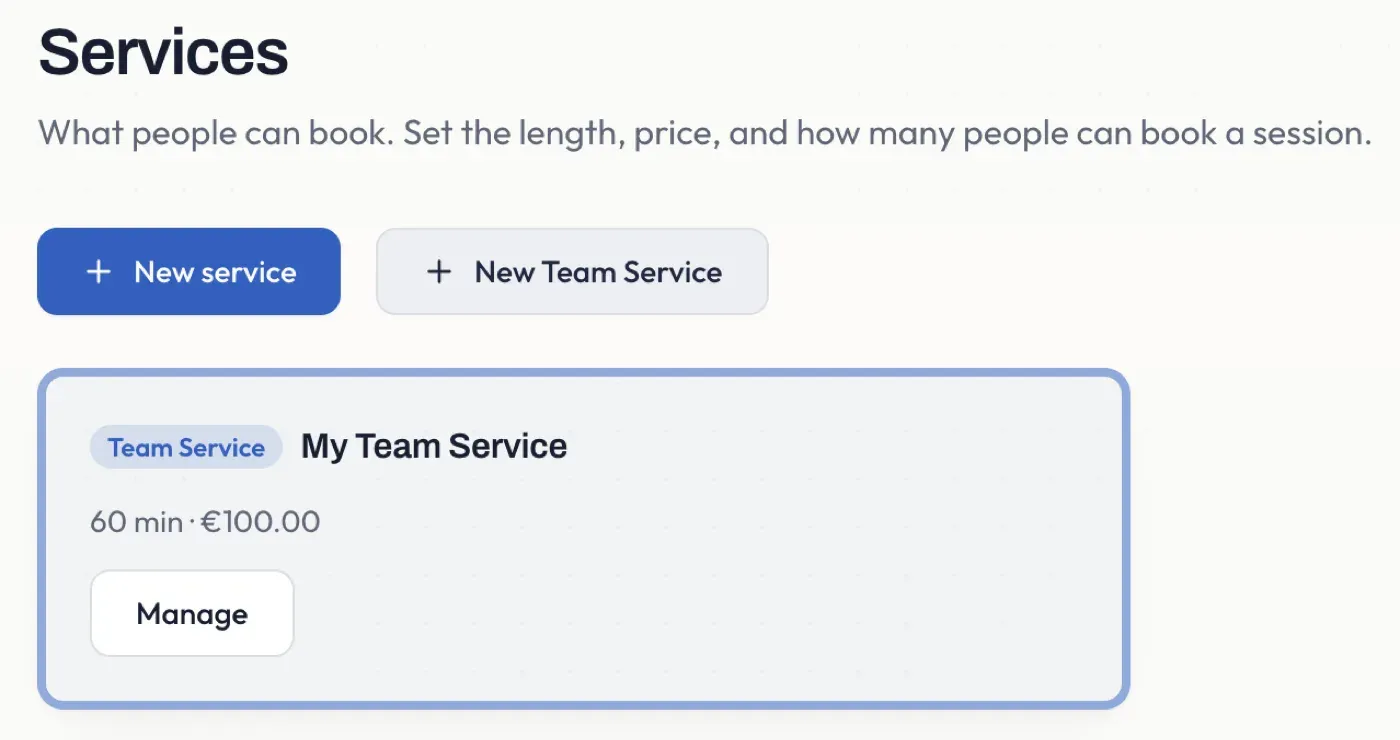
Section titled “Creating a Team Service”Open Services and choose New Team Service. The list shows Team Services alongside personal ones, and a Team Service you manage always keeps a card here so you can edit it.
On the Team Service screen you set the parts that must be the same for everyone who offers it:
- Name, price and currency
- Duration and seats (how many people one member can take in a single session - 1 for a one-to-one, higher for a group)
- Slot style (how times are generated) and session pricing
- Grid interval (how slots are spaced) and gap after booking
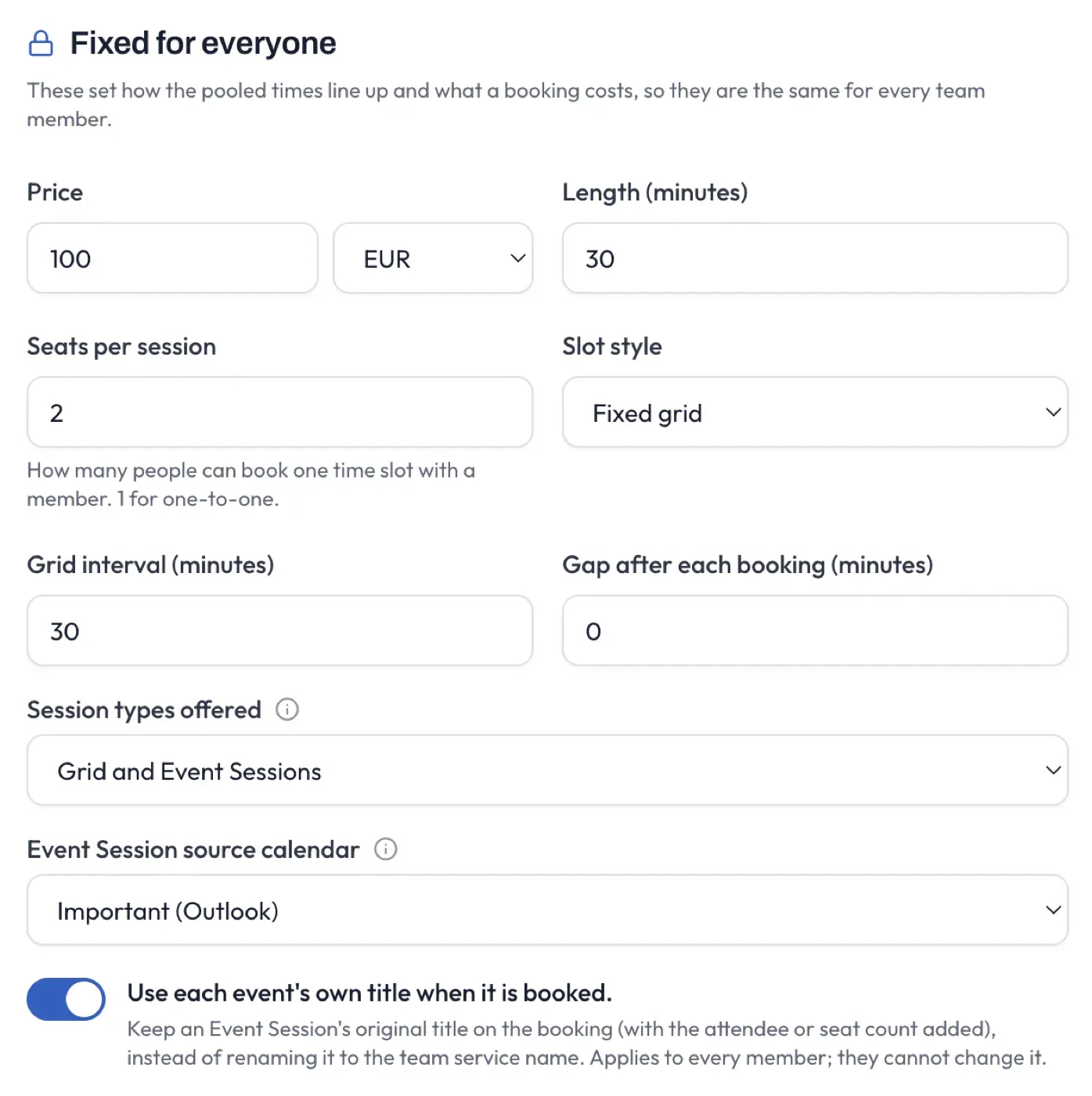
Currency comes from your company Stripe account, since Team Services are always paid into it.
What you fix, and what members fill in
Section titled “What you fix, and what members fill in”Some fields are always the team’s to keep the service coherent across everyone; some you can choose to lock; and some are always the member’s.
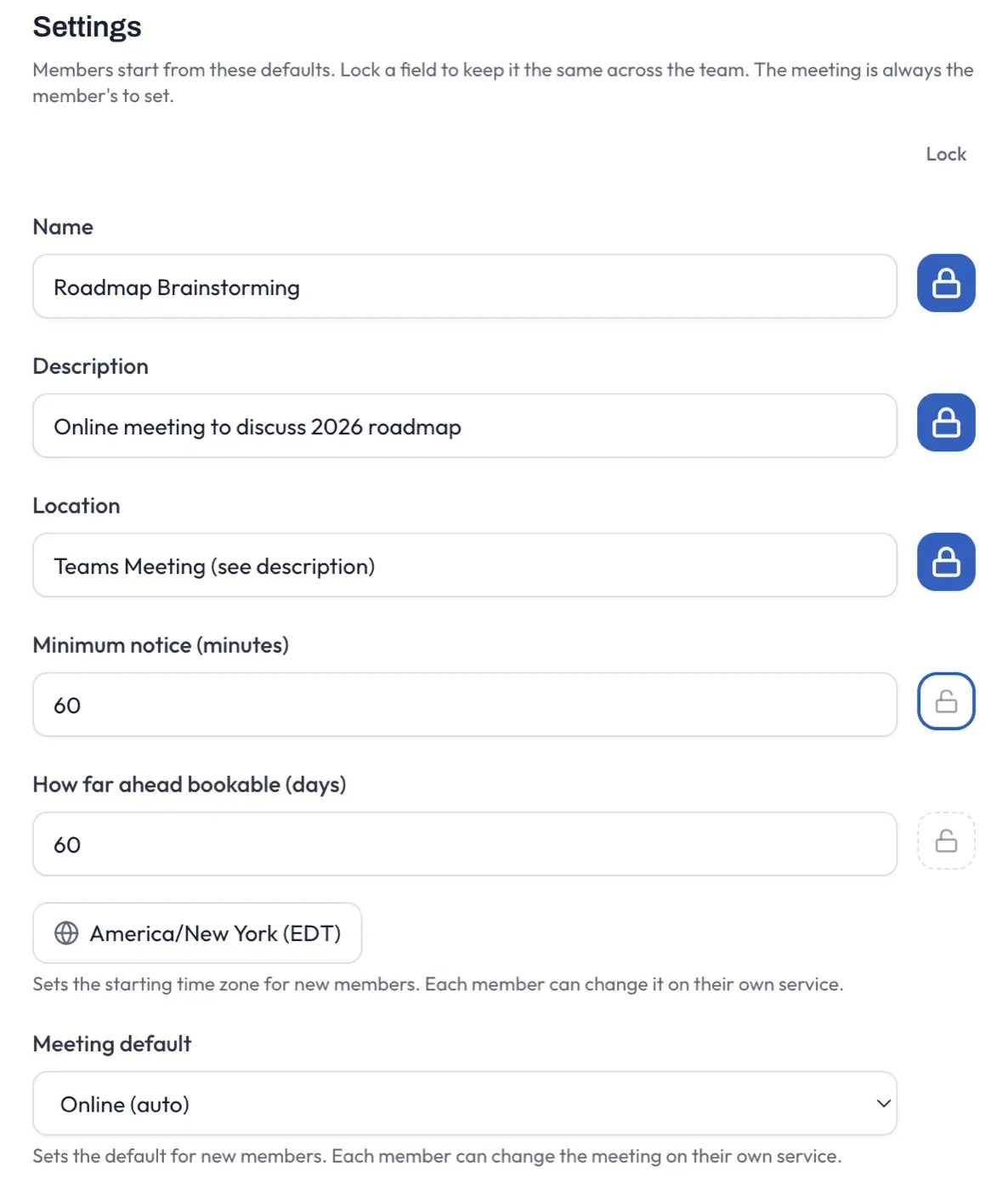
- Always fixed (members inherit these read-only): price, currency, duration, seats, session pricing, slot style, and billing (Team Services are always paid into the company account).
- Lockable - your choice: name, description, location, minimum notice, and booking horizon. Lock one and members inherit it read-only; leave it unlocked and it becomes a default the member can change for their own copy.
- Always the member’s: their availability (weekly hours and date overrides), their booking target calendar, their time zone, and their meeting. These are what make pooling work - different members are free at different times, run their sessions in their own local time, and run their own meetings - so they are never fixed by the Team Service. For the time zone and the meeting you set a default that new members start with, then each member owns and changes it on their own service. (The meeting default is only Off or automatic online - a manual link or “use the calendar event’s meeting” would be the admin’s, not the member’s, so those live on each member’s own service. The time zone default just gives new members a sensible starting zone; bookers always see times in their own zone regardless.)
Session types and the Event Session source
Section titled “Session types and the Event Session source”A Team Service can offer Grid sessions, Event sessions, or both.
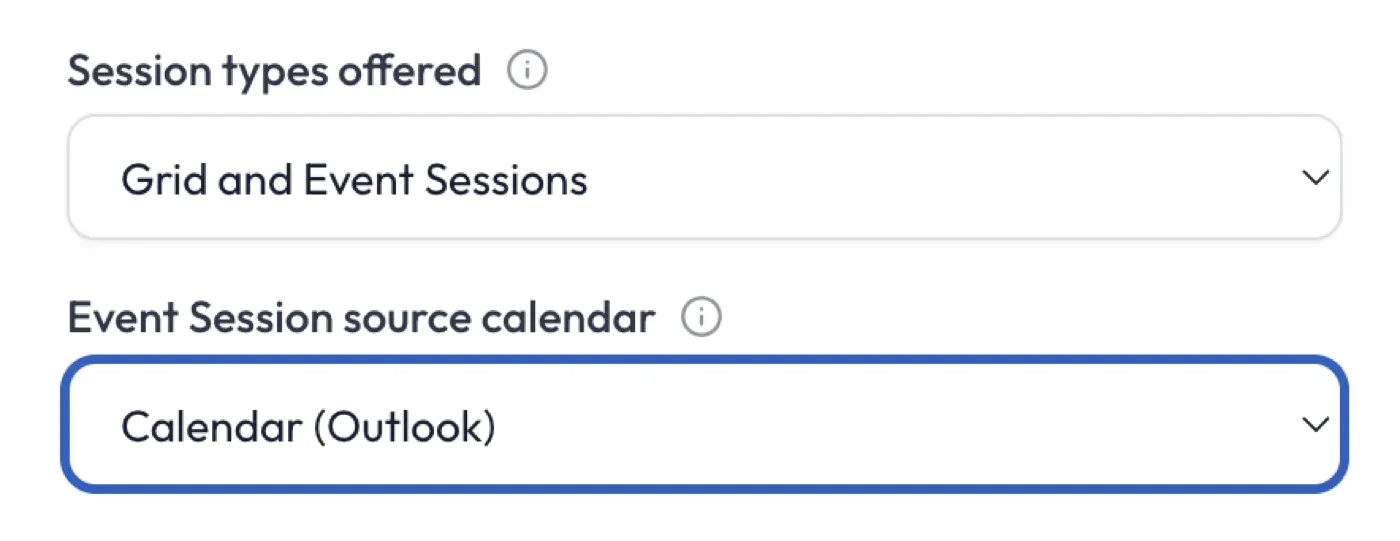
- Grid sessions come from each member’s own weekly hours. Every member’s hours feed the pool, so the combined availability is the union of when your people are free.
- Event sessions come from one calendar you designate - members do not set up their own event calendars for a Team Service.
If you offer Event sessions, pick one of your own calendars as the source. Place your bookable free events on it (a session is any event you mark as Free). Those events appear as bookable Event sessions for every member. When someone books one, the booking is copied onto the assigned member’s own calendar - your source calendar is never changed, so its schedule stays clean for everyone. Members do not wire their own calendars; they just see a note that Event sessions are provided by the team.
If you choose Grid only, the option for members to mark their own calendars bookable is hidden, since a Team Service never sources events from a member’s calendar.
Session titles
Section titled “Session titles”Below the source calendar is a switch that decides what a booked session is called on the assigned member’s calendar - and what the booker sees at checkout:
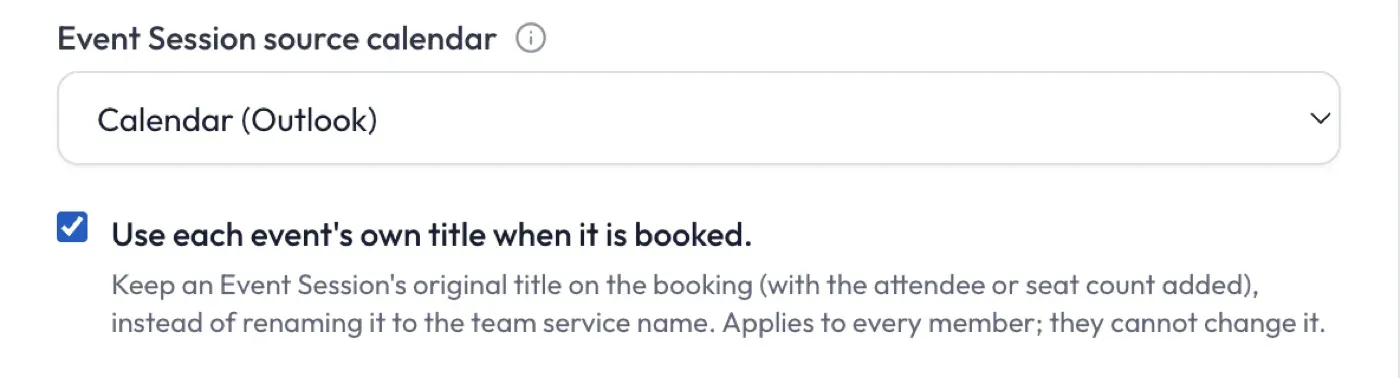
- Use each event’s own title when it is booked (on by default) - a booked session keeps the title you gave it on the source calendar. So “Product Roadmap Session” stays “Product Roadmap Session” in the booker’s confirmation email and event copy. The team admin and members see bookings that correspond to the names of each event.
- Turn it off - booked event sessions, like grid sessions, are always given the Team Service name.
This is your choice for the whole team - members inherit it and cannot change it, just like the price. It only affects Event sessions; Grid sessions always carry the service name.
Pricing
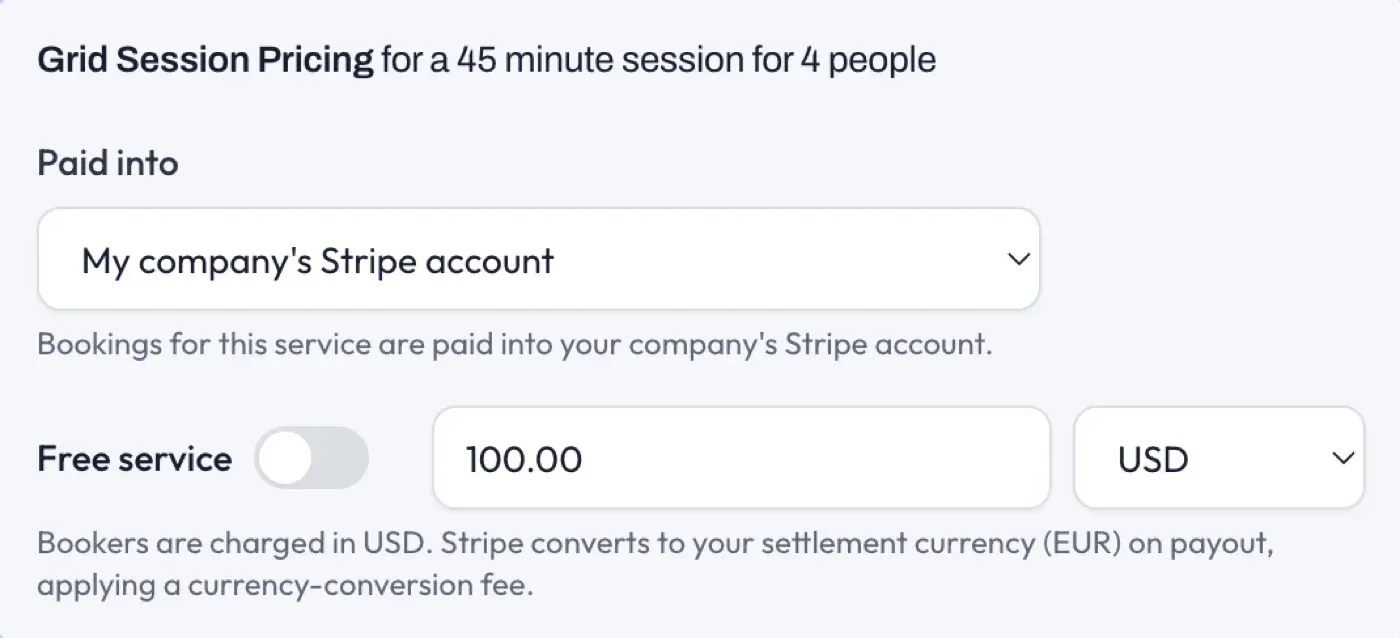
Section titled “Pricing”You set the pricing, and every member inherits it - so a booker pays the same wherever they book, and whoever they are routed to.
Grid Session Pricing is the price for a generated grid slot.
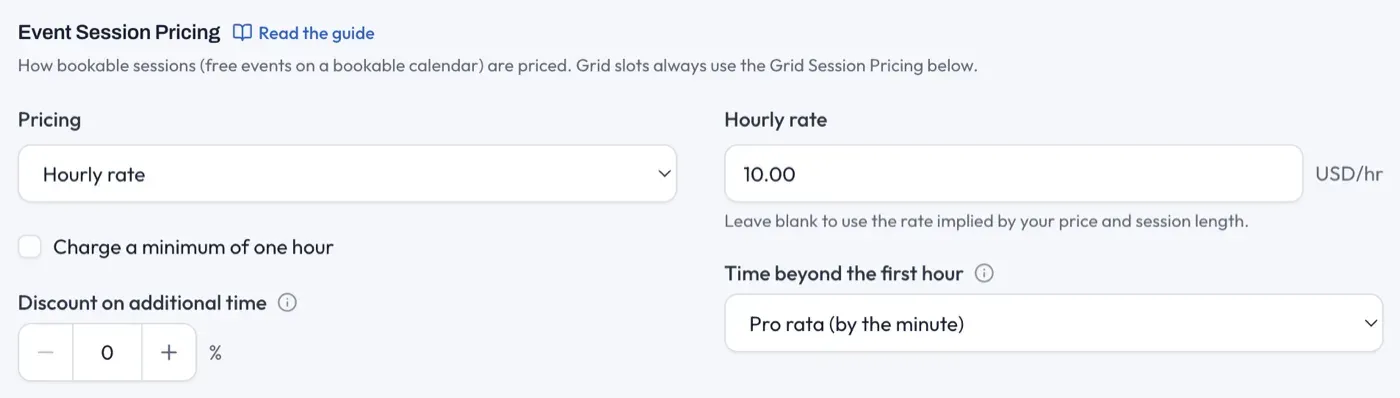
Event Session Pricing sets how event sessions are charged - a flat amount, or an hourly rate for sessions of different lengths.
Editing a Team Service later
Section titled “Editing a Team Service later”When you edit a Team Service, the changes propagate to every member who has set it up:
- Locked fields update on everyone’s copy, so a price or duration change takes effect for their future availability and future bookings.
- Unlocked fields a member has customised are left alone - editing the Team Service’s default does not overwrite someone’s own description or location.
- Existing bookings are never changed. The price a booker paid is fixed at the time of booking; a later edit only affects new bookings.
Changing the seat count applies to new bookings. Sessions that are already scheduled keep the seats they had.
Publishing and unpublishing a Team Service
Section titled “Publishing and unpublishing a Team Service”A Team Service is either published (live to bookers) or unpublished (offline). You control this for the whole team from the managed card on your Services list.
- Unpublish takes the service offline for every member at once: it stops appearing on the company booking page and on each member’s own booking page, and it stops taking new bookings.
- Publish brings it back live everywhere.
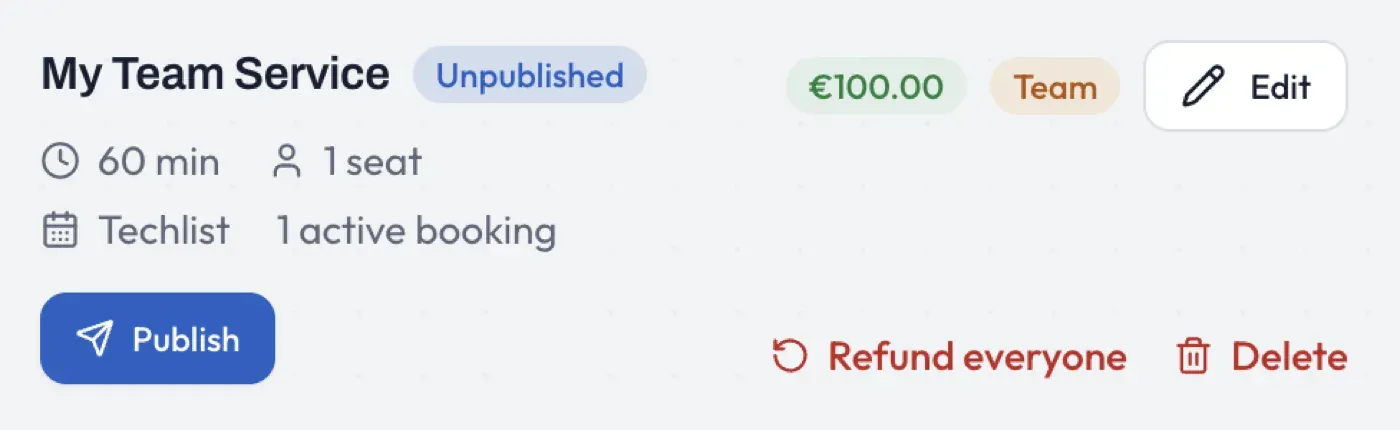
Unpublishing is safe. Existing bookings are never affected - they stay confirmed, still land on the member’s calendar, and can still be delivered or refunded. You are only stopping new bookings.
Only you, the admin, can publish or unpublish a Team Service. A member sees their copy go offline with a note that it was unpublished by your team admin; they cannot publish it back themselves. This is separate from a member choosing to unpublish their own copy - if you have published the Team Service, an individual member can still take their own instance offline, and re-publishing the Team Service does not override that choice.
Duplicating a Team Service
Section titled “Duplicating a Team Service”To build a second Team Service that is similar to one you already have, use Duplicate on its managed card. It creates a new Team Service named “… (copy)” with all the same settings and locks, and opens it in the editor ready to adjust.
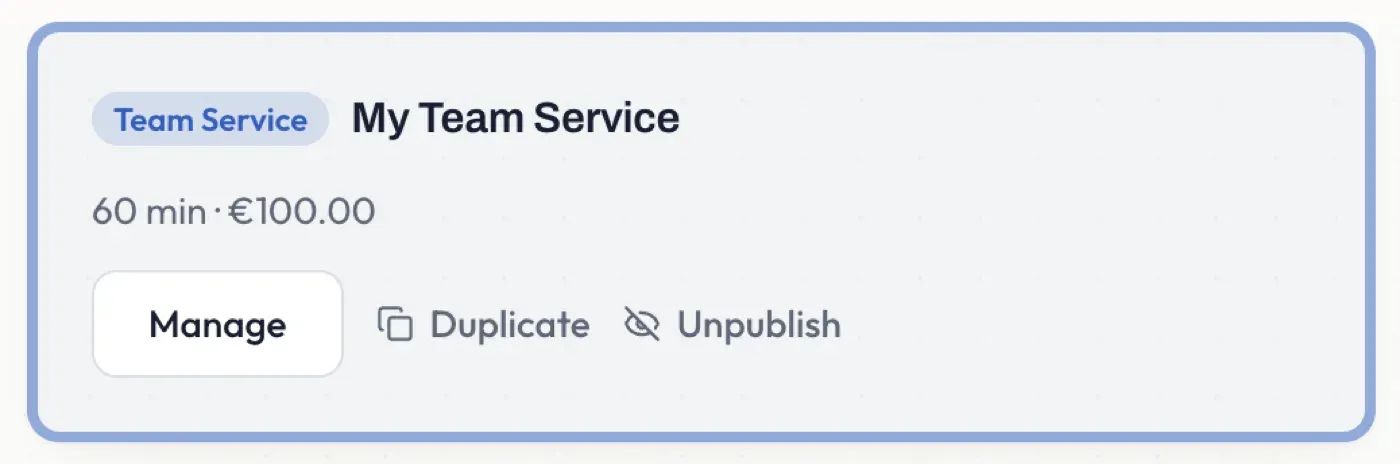
One thing is deliberately not copied: the Event Session source calendar. Because a source calendar can back only one Team Service, the copy starts with no source, so you pick a fresh one (or leave it Grid-only). Everything else - price, duration, seats, session pricing, locks - comes across.
Refunds and cancellations across the team
Section titled “Refunds and cancellations across the team”Because Team Service bookings are paid into the company account, you can refund or cancel any member’s company booking yourself, from the Bookings page in the Company view. The refund goes back from the company account, and the member sees a note on the booking saying you refunded or cancelled it, and when.
Whether members can refund their own company bookings is your choice, set with a toggle on the Team page:
- On (the default) - members refund and cancel their own company bookings themselves, as they would any booking.
- Off - only you handle refunds and cancellations for company bookings. A member who tries is told their team admin handles them.
Either way, you can always refund or cancel any company booking. See Team payments for how the money moves.
The company booking page
Section titled “The company booking page”Every active Team Service appears on your company booking page, which pools all members’ availability into one public page.
- A time stays bookable while any member is free for it; once everyone is taken, it drops off.
- Each booking is routed to one free member and lands on their calendar, paid into the company account. The booker sees the service under its team name, not an individual’s.
Sharing your booking page
Section titled “Sharing your booking page”You’ll find the share card on the Team page. It gives you the public booking link, an editable handle for it, and a separate link for each Team Service.
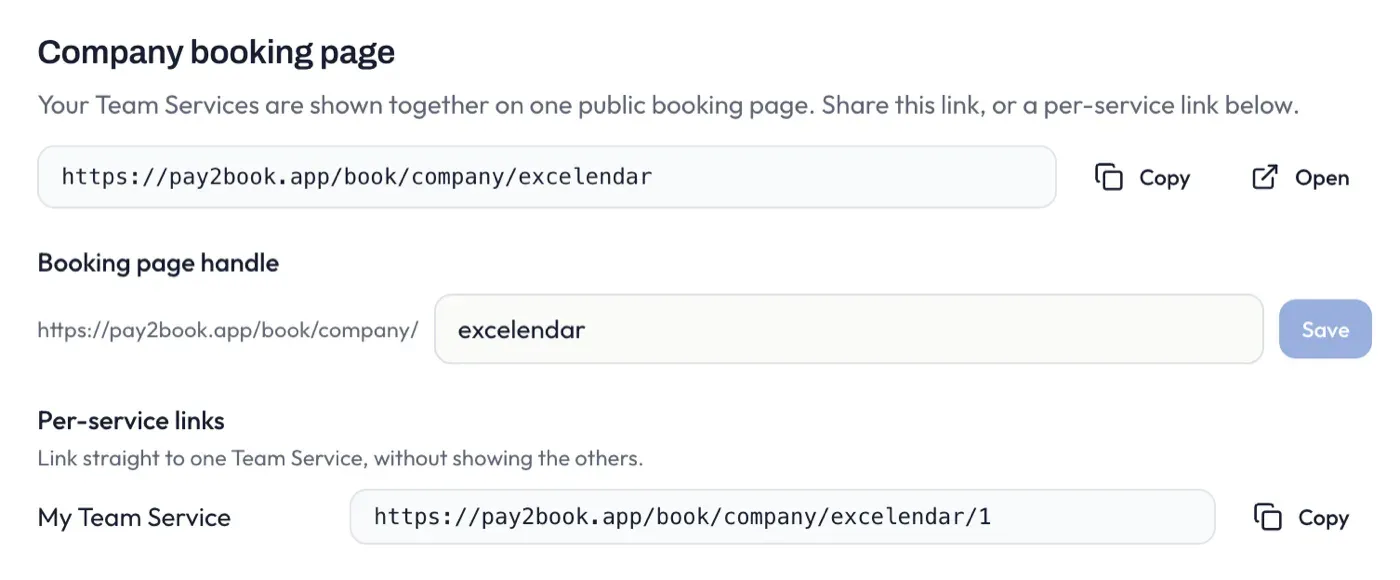
- Company link -
pay2book.app/book/company/<handle>. Use Copy to share it, or Open to preview the page yourself. - Booking page handle - the part after
/company/. It starts from your company name; change it to something tidier and press Save. Letters, numbers and hyphens only, and it has to be unique. - Per-service links - each Team Service has its own link (
…/company/<handle>/1), so you can point someone straight at one service without showing the rest of the list.