Free Group Sessions from Your Calendar
To let several people book the same session from your calendar, use Pay2Book: give a service seats per session and offer the events already on your Google or Outlook calendar. It’s free, and each event keeps count of its bookings, from [1/2 booked] to full.
Google Calendar’s appointment schedules can’t do this: each time slot is booked by one person, and the times come only from your weekly availability, never from events you have planned. Calendly offers group events, but only from its Standard plan at $10 per seat per month (billed yearly). This guide walks through the set-up, two bookings and a cancellation.
1. Create a service with seats
Section titled “1. Create a service with seats”In the Pay2Book console, create a new service. Give it a name (here, Online Session) and choose the booking calendar that holds your sessions (here, Business).
Then set the number of seats per session. We use two for this demo so the session fills quickly, but it can be any number.
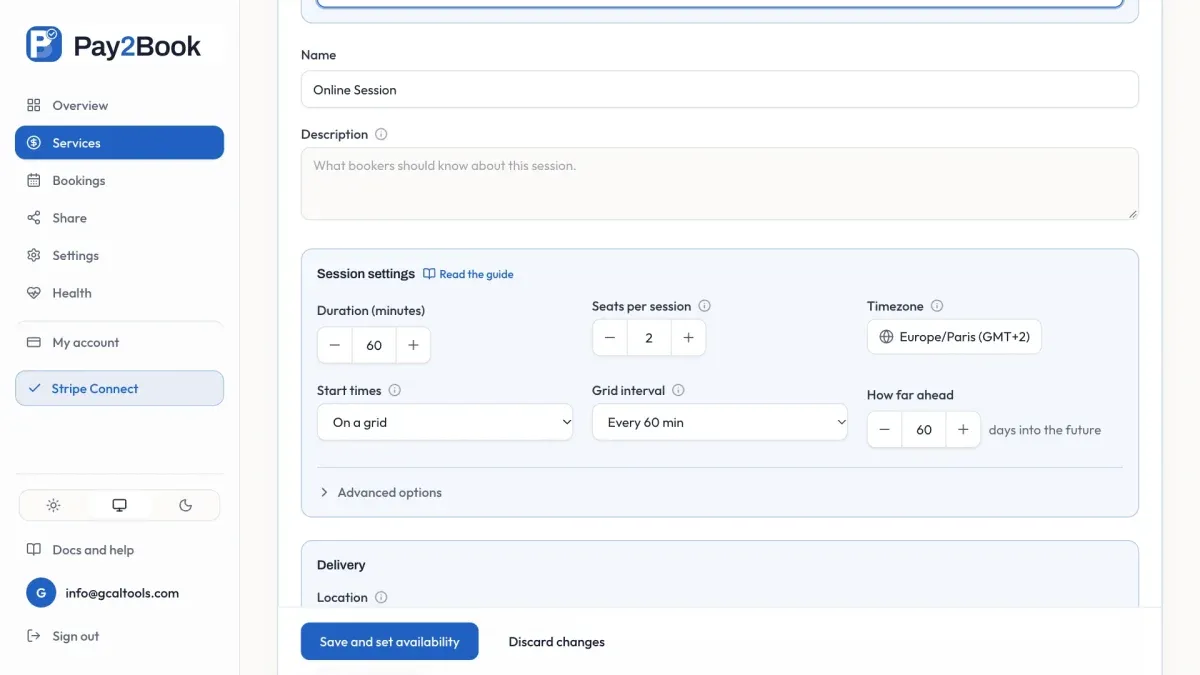
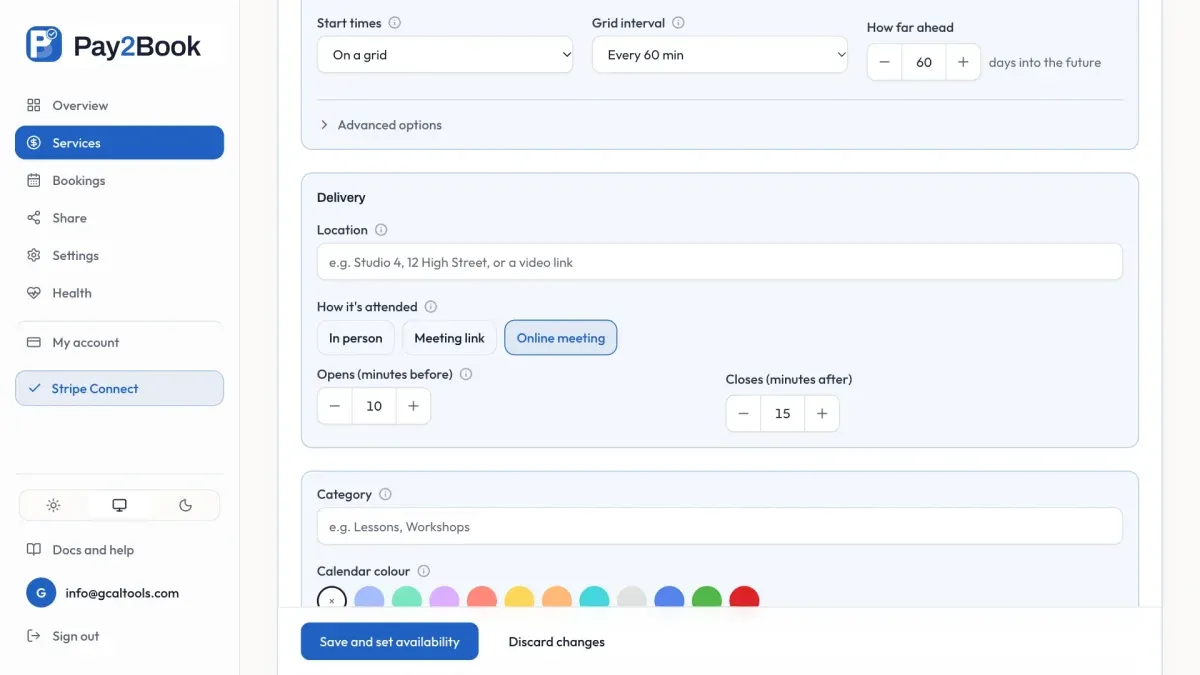
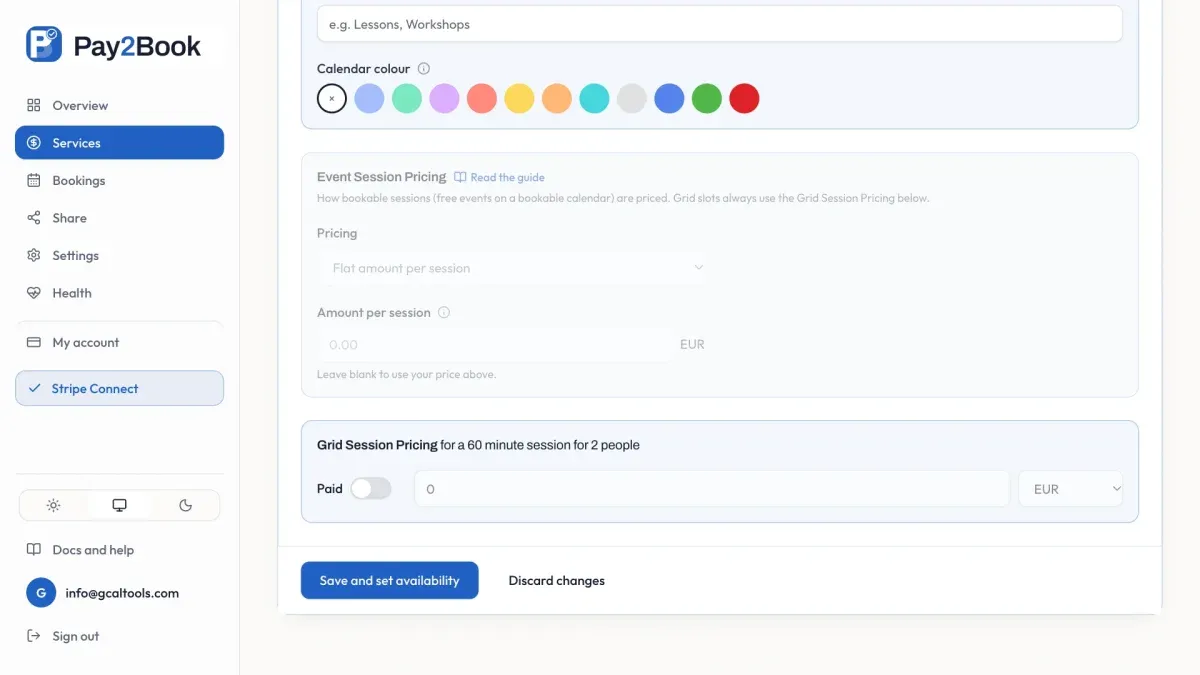
Choose Online meeting as the delivery, so every booking gets a meeting link, and switch Paid off to make the service free. On the free plan you get one service, or two free services once you connect Stripe.
2. Offer your calendar events as the sessions
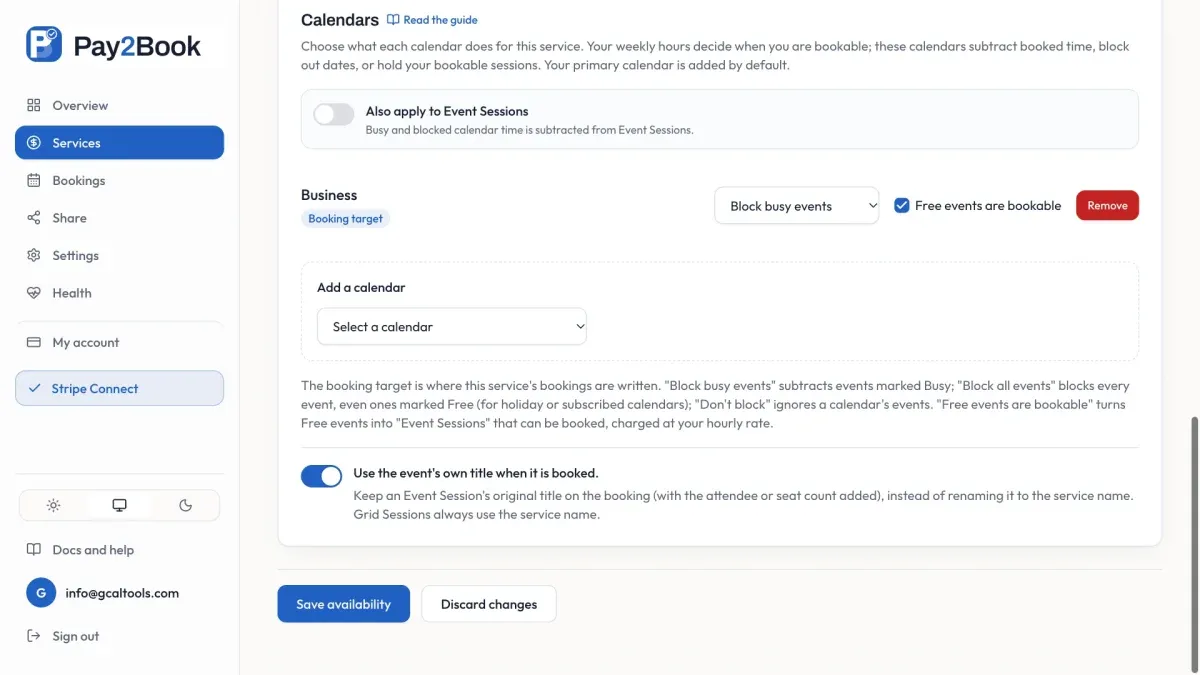
Section titled “2. Offer your calendar events as the sessions”Next comes availability. Leave the weekly hours empty and tick the checkbox “Free events are bookable”. Now the free Online Session events on your calendar are the only times on offer, so you plan sessions exactly as you always have: by adding events to your calendar.
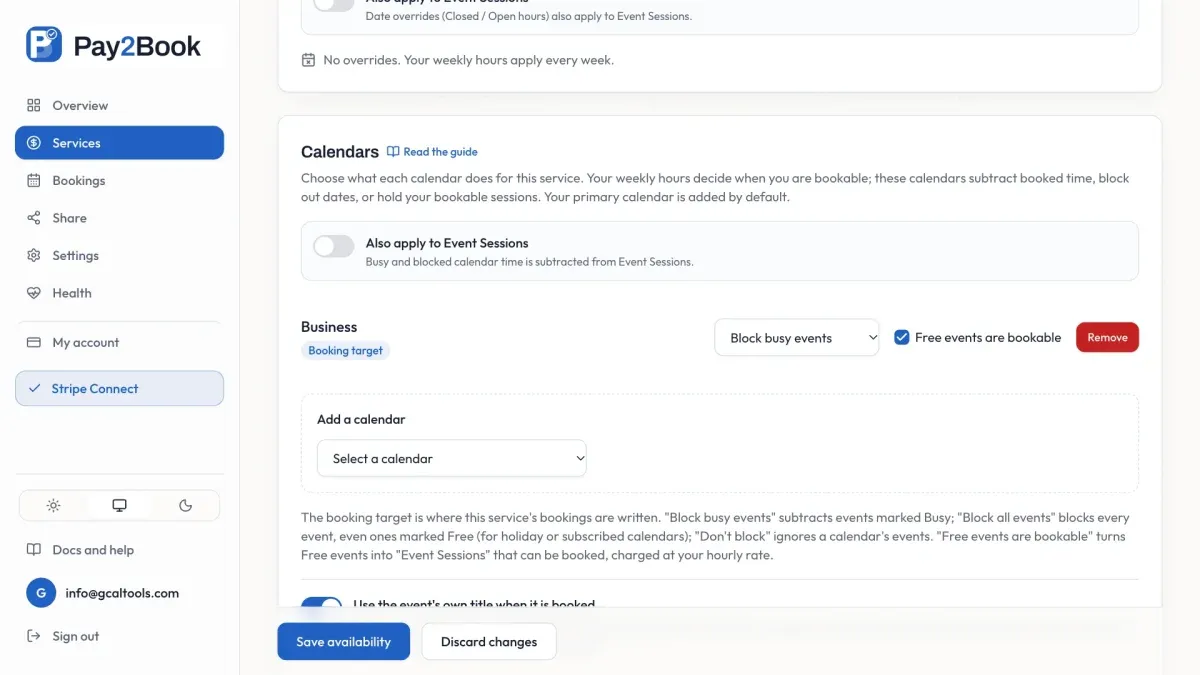
Leave the switch “Use the event’s own title” on, so each booking keeps the event’s name, Online Session. Save, then publish the service.
3. The first booker
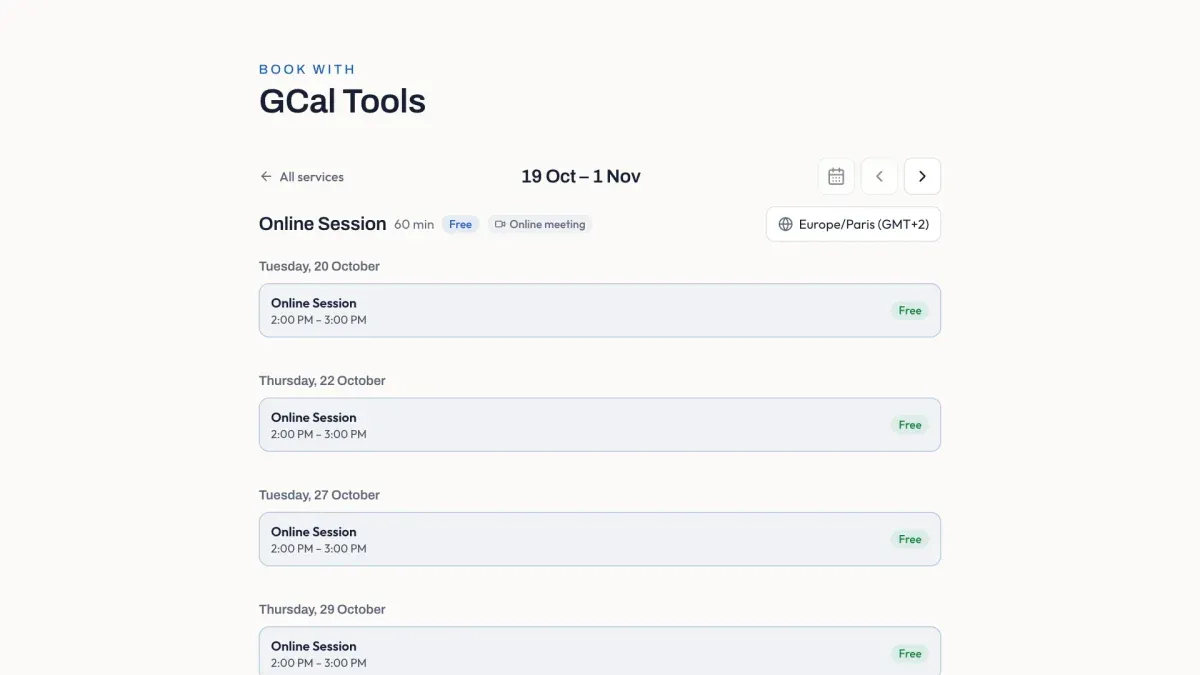
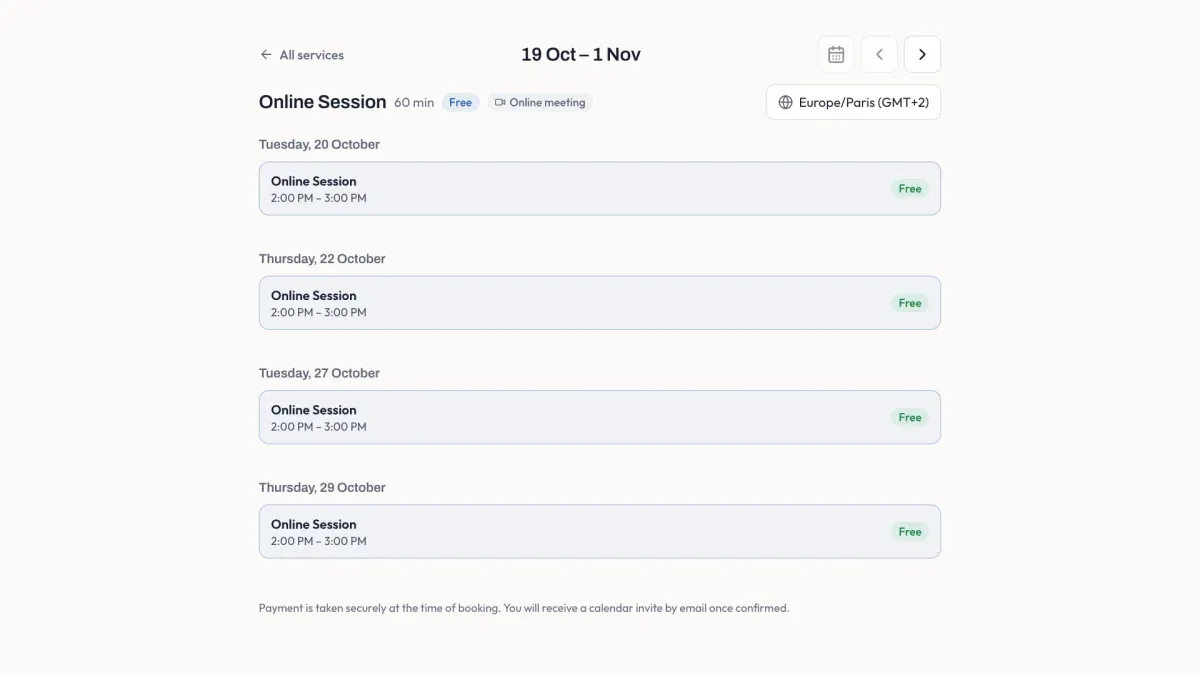
Section titled “3. The first booker”On your booking page, the service shows that up to two people can join, and instead of time slots it lists your Online Session events. Miles picks Tuesday 27 October and enters a name and email address.
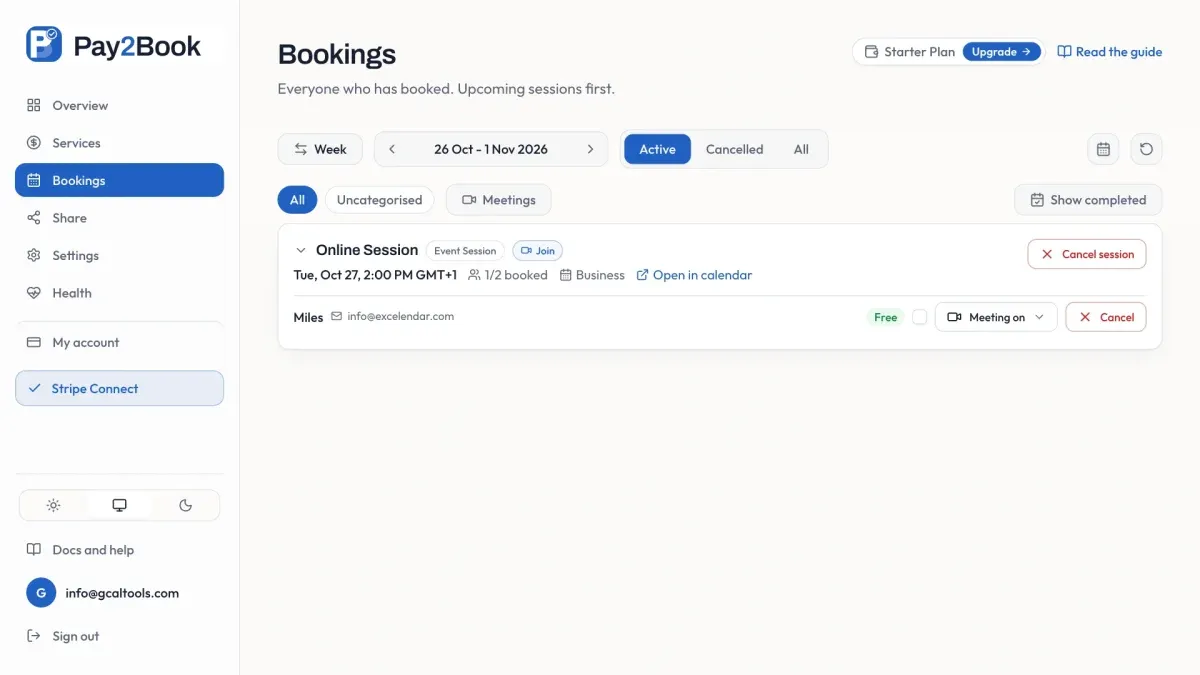
As soon as Miles confirms, the event on your calendar reads Online Session [1/2 booked]. The session stays on the booking page, because one seat is still free.
![The calendar event reading Online Session [1/2 booked]](/_astro/half-event.DZ1zNNgV_ZzsaxT.webp)
4. A full session leaves the booking page
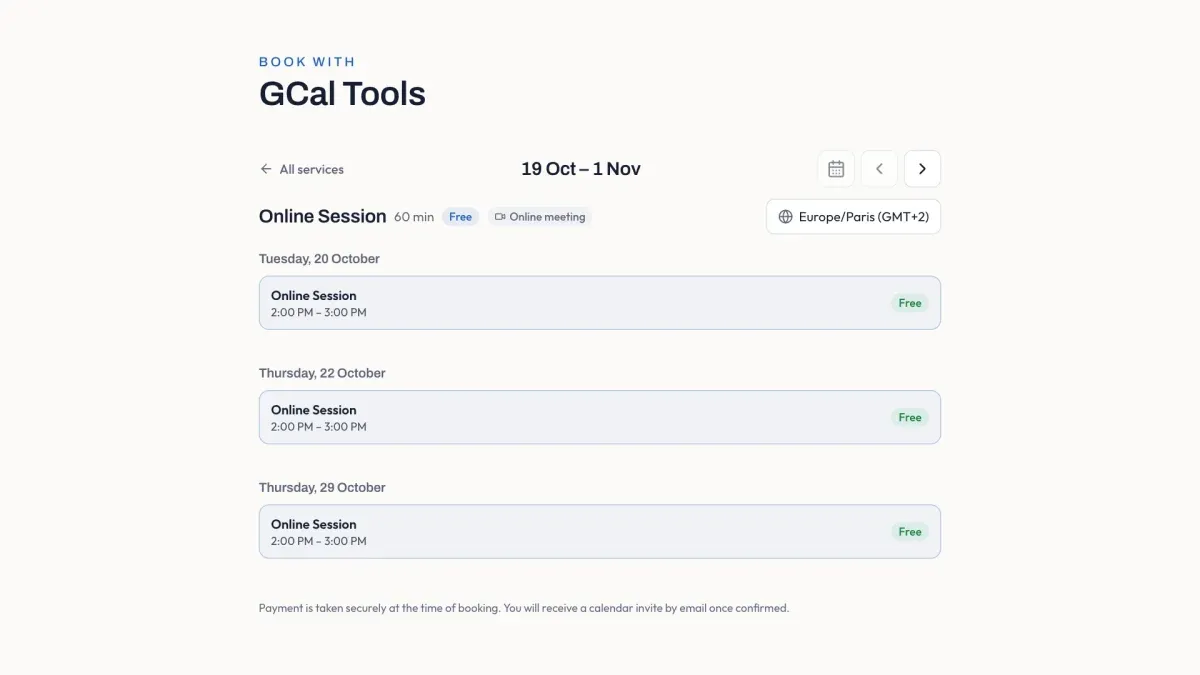
Section titled “4. A full session leaves the booking page”Neil books the same session in exactly the same way. The event now reads [2/2 booked], and since the session is full, Tuesday 27 October disappears from the booking page.
![The calendar event reading Online Session [2/2 booked], with Miles and Neil](/_astro/full-event.CX8jVJdn_Zm4L2D.webp)
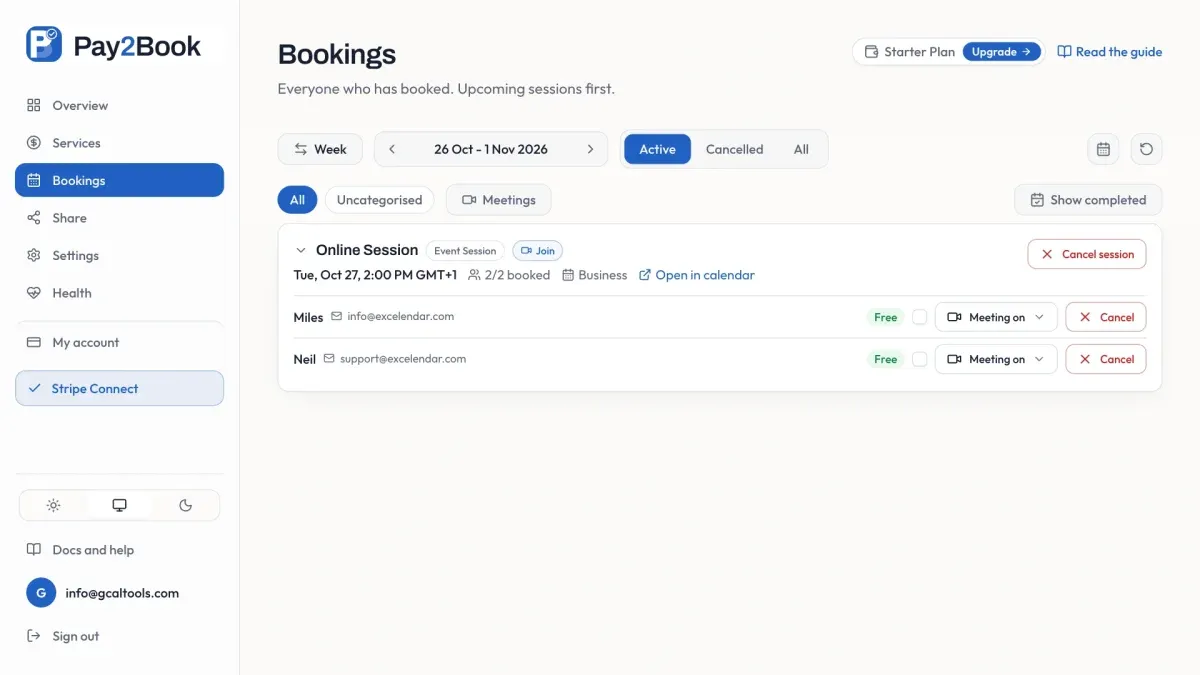
In Bookings, both people appear under the one session.
5. A cancellation frees the seat
Section titled “5. A cancellation frees the seat”Cancel Neil’s booking and the seat opens up again: the event goes back to [1/2 booked], and Tuesday 27 October is bookable once more. It works the same when a booker cancels with the link in their own confirmation email.
Miles is never told about any of this, because bookers are never added as guests to your event.
Try it
Section titled “Try it”Try Pay2Book for free, and see the event sessions guide for every option.