Pay2Book Overview: Free and Paid Bookings
Pay2Book turns your Google or Outlook calendar into a booking page. You offer free or paid sessions, Stripe takes payment up front, and every booking is written straight back to your calendar, so it works as an alternative to Calendly and Google Calendar’s appointment schedules.
What makes it different: your calendar stays the source of truth, so there’s no second schedule to go out of sync. Bookers are never added as guests on your events, and each booker’s meeting link keeps working even if you change the meeting. This tour builds a free service from scratch and follows one booking all the way through.
1. Sign in and see the two ways to offer times
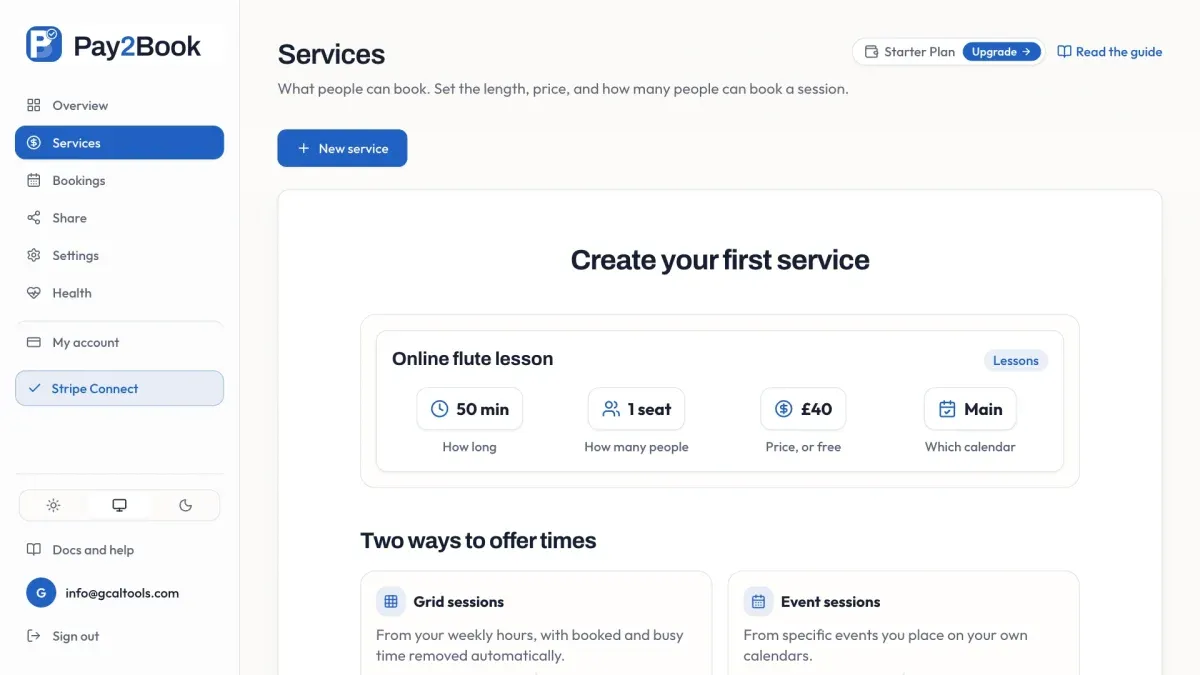
Section titled “1. Sign in and see the two ways to offer times”Sign in with Google or Microsoft and Pay2Book works on your real calendar. It doesn’t store a copy, so there’s nothing to keep in sync. Your first visit to Services explains the two ways to offer times: grid sessions from your weekly hours, and event sessions from events you place on your calendar. Both end up on one booking page, and each confirmed booking lands on your calendar.
2. Create a service
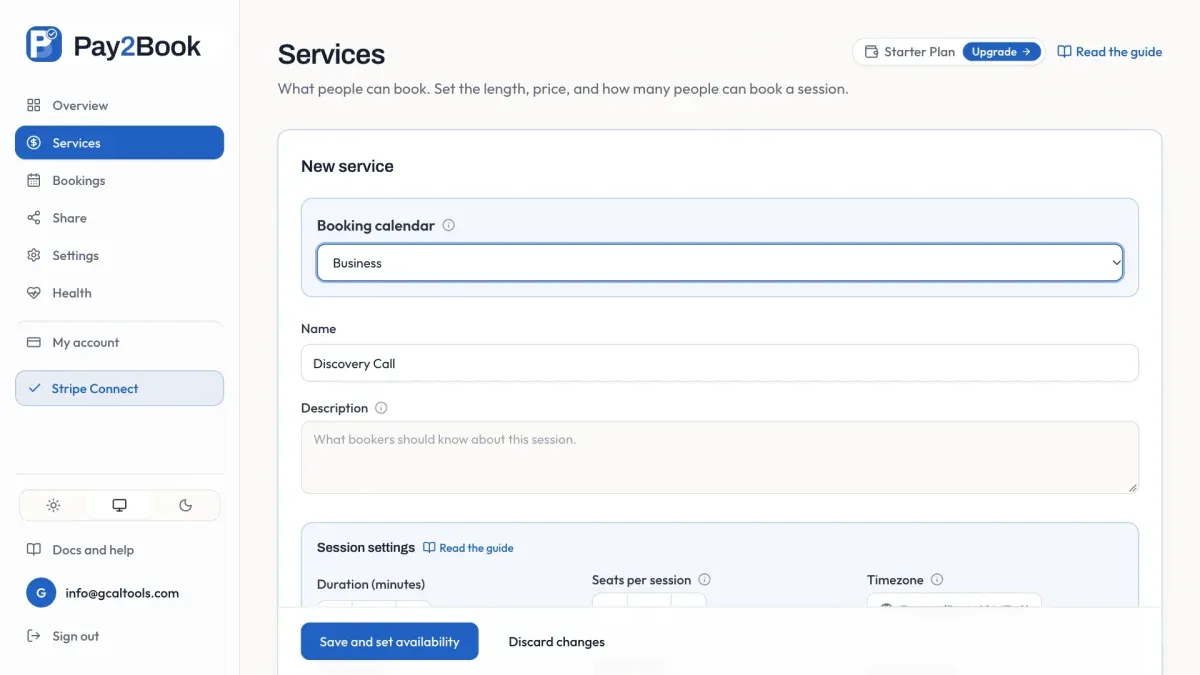
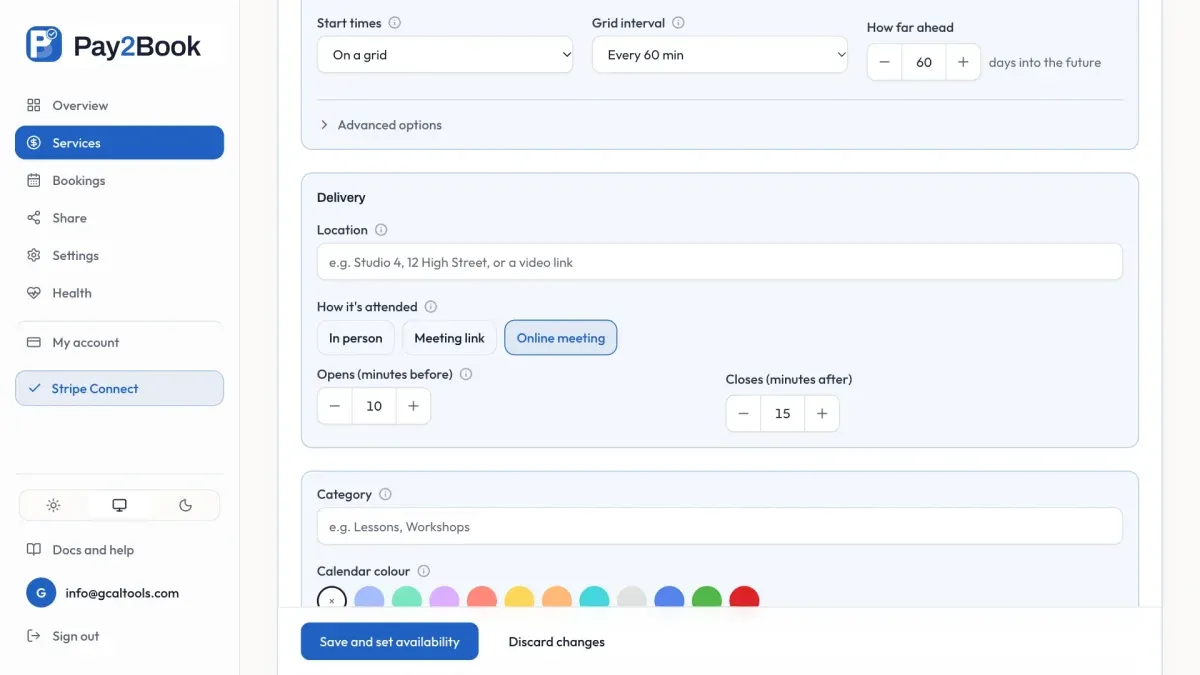
Section titled “2. Create a service”Create a free service: pick the calendar where bookings land (here, Business), name it Discovery Call and set it to thirty minutes. Select Online meeting, so Pay2Book creates a meeting for each session, then switch Paid off. Once Stripe is connected, the same switch takes payment up front.
3. Grid sessions from your weekly hours
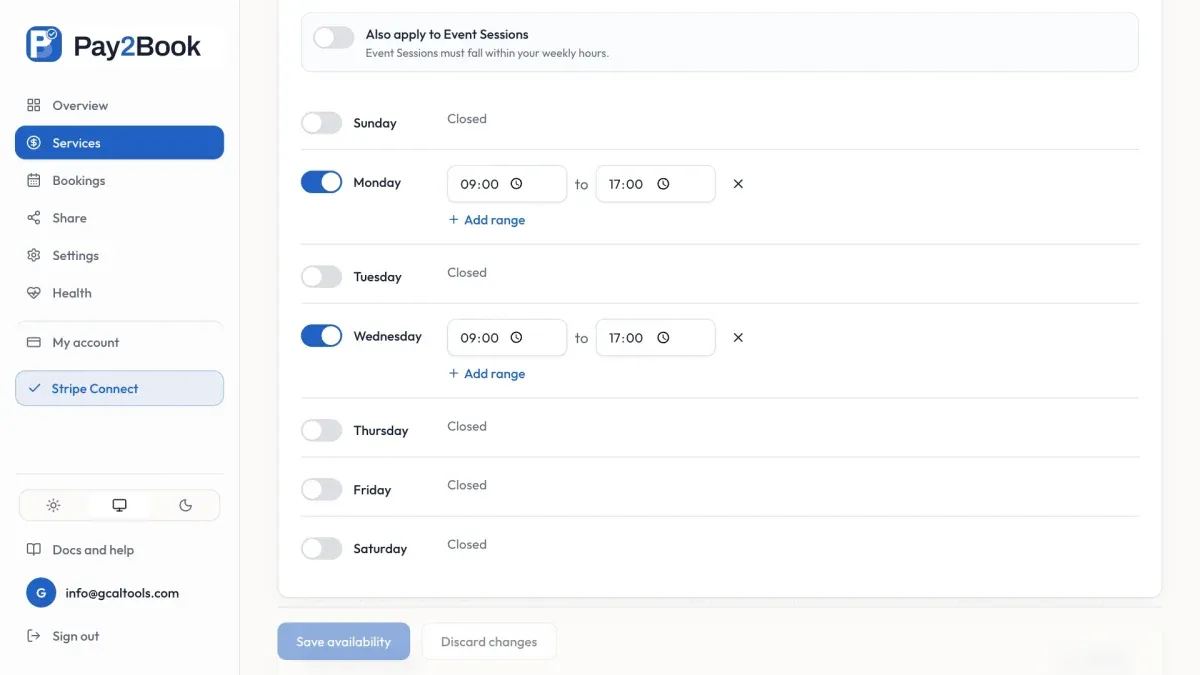
Section titled “3. Grid sessions from your weekly hours”Grid sessions come from your weekly hours. Here, Monday and Wednesday are turned on, with the end time set to five o’clock. Anything marked busy on your calendar, like a Monday team meeting, is taken out for you.
4. Event sessions from your calendar events
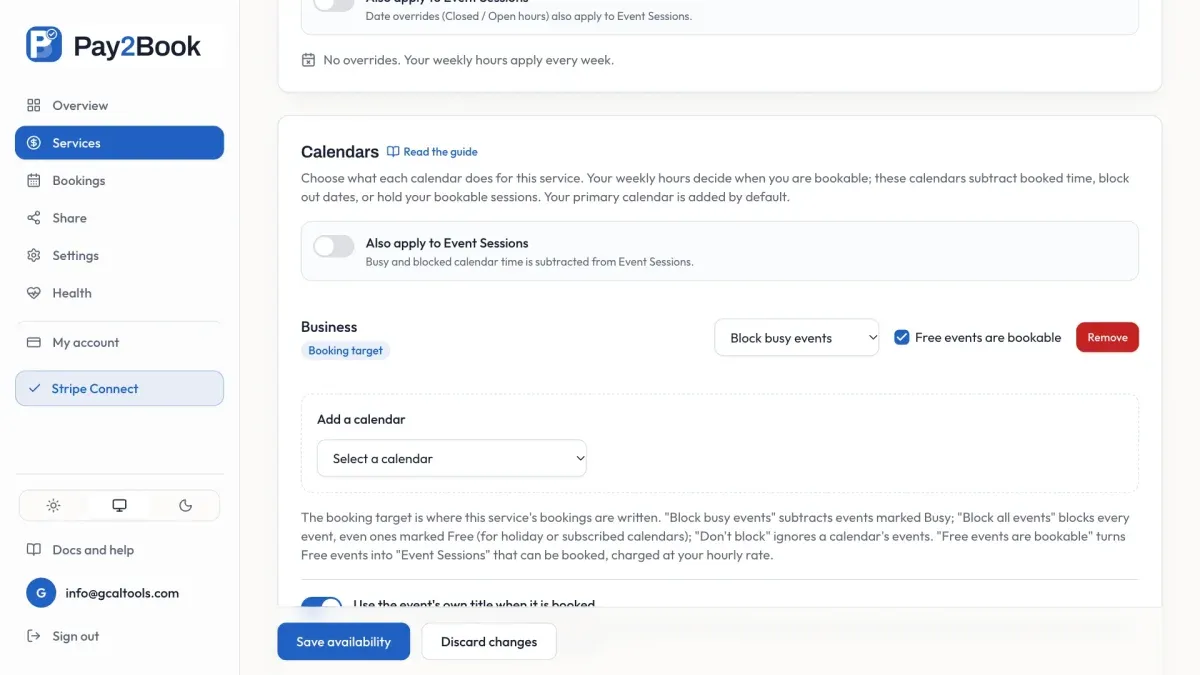
Section titled “4. Event sessions from your calendar events”Event sessions reuse your own events. Business holds an Online Session on Tuesdays and Thursdays, so tick the checkbox “Free events are bookable”, and those events go on offer just as they are.
5. Publish and share
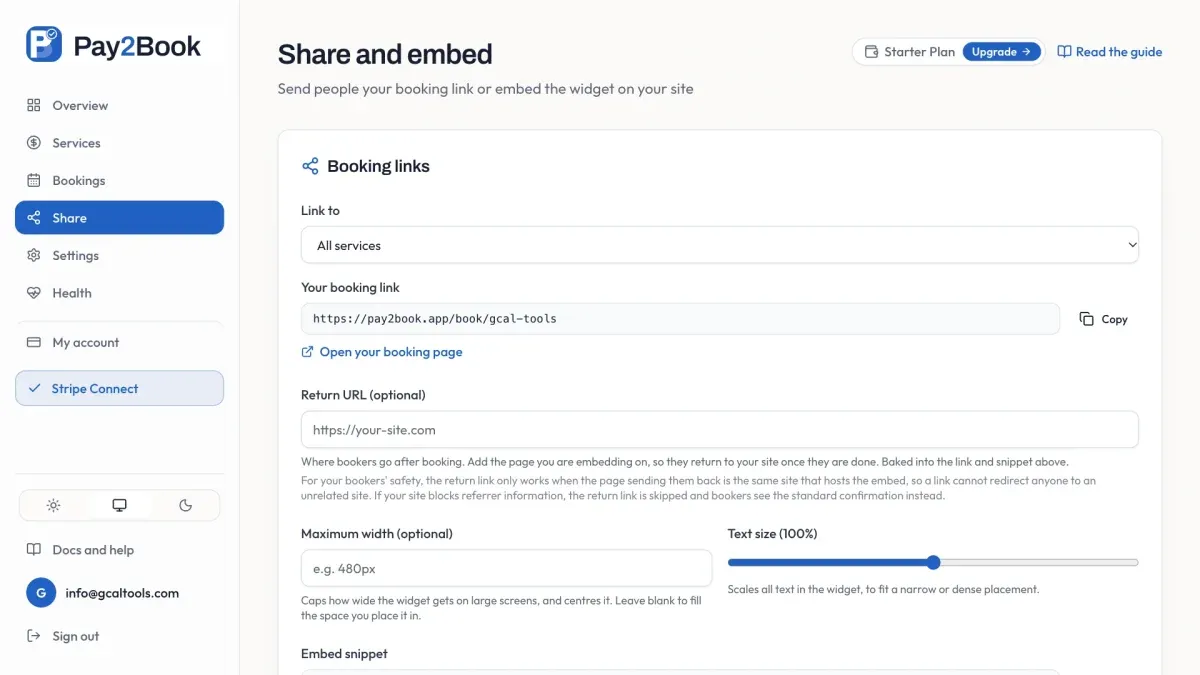
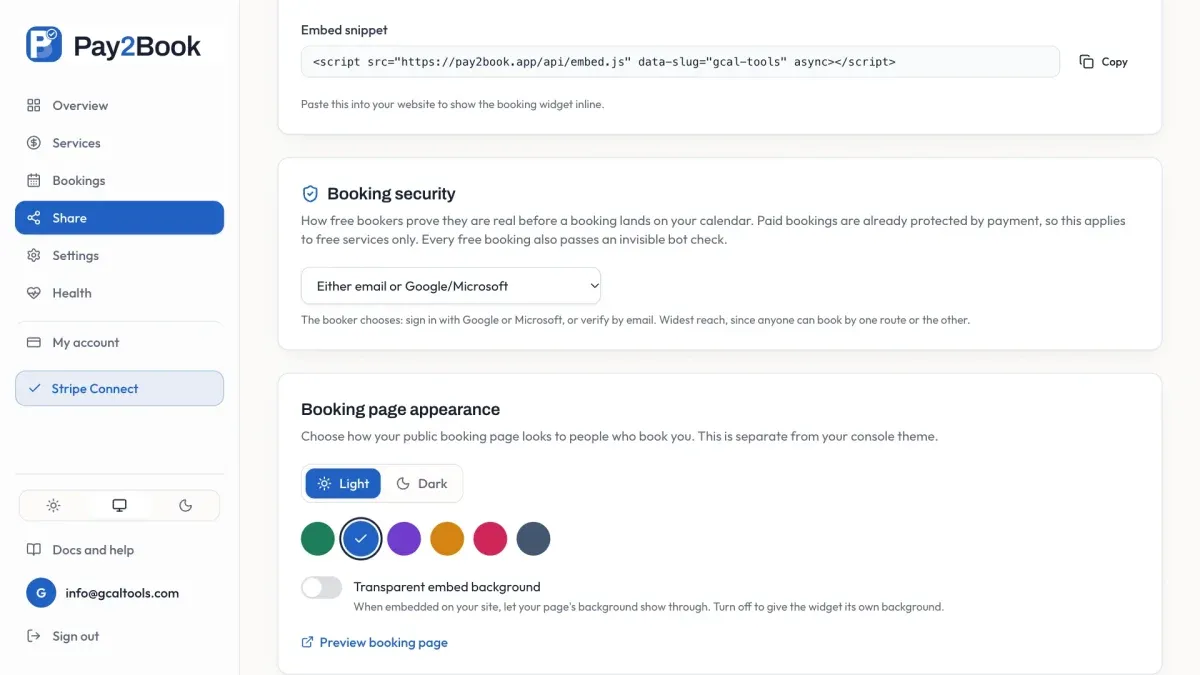
Section titled “5. Publish and share”Publish the service and it’s live. Send people your booking link, or paste the embed snippet on your website so they can book without leaving it. You can also choose a light or dark booking page and a colour to match your site.
6. What your bookers see
Section titled “6. What your bookers see”On the booking page, the Online Sessions are event sessions, made from the free events on Business. The time slots are grid sessions, from your weekly hours, and Monday’s team meeting is kept clear because it’s marked busy.
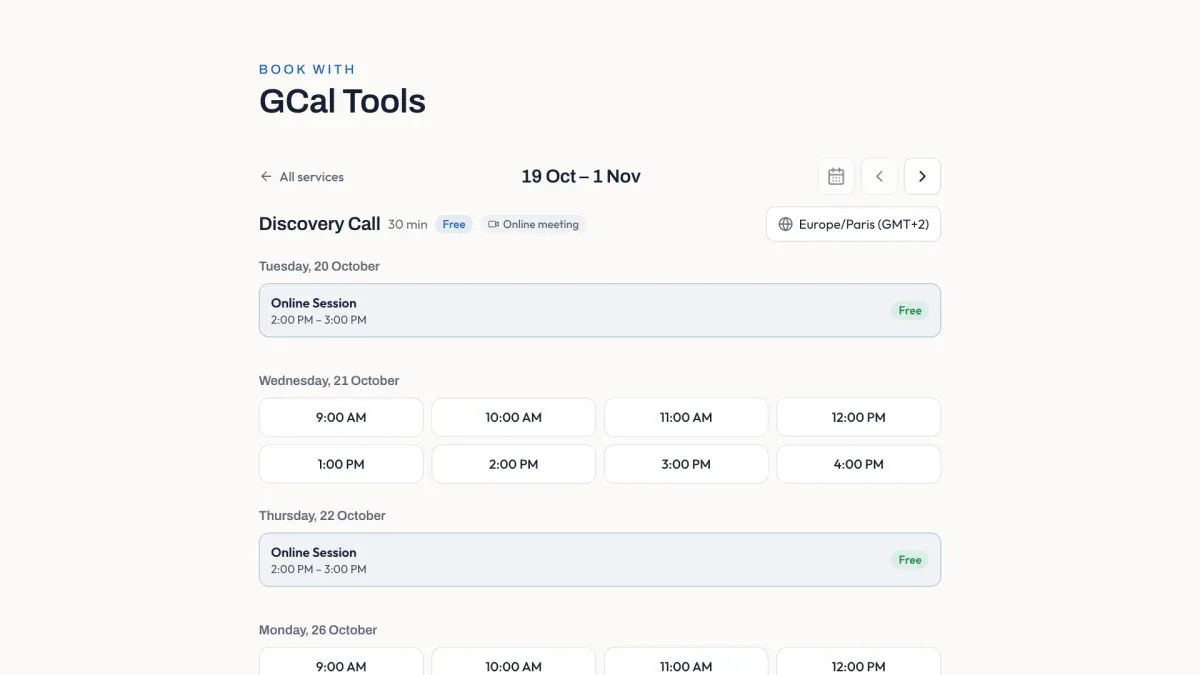
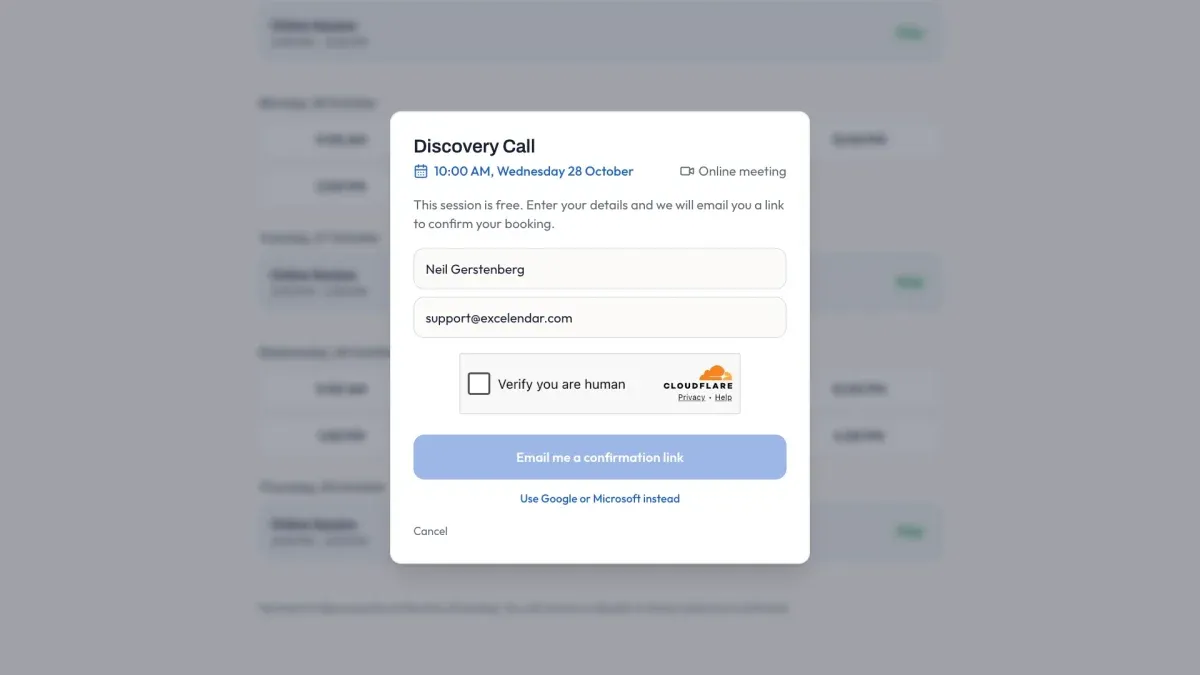
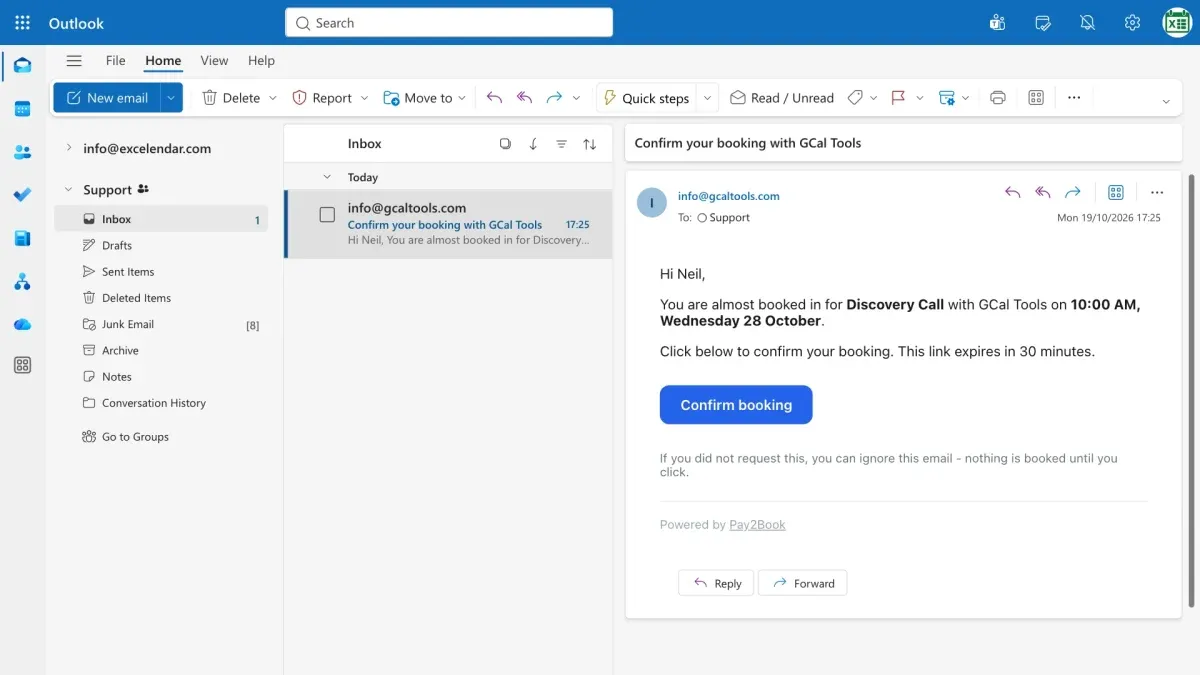
A booker chooses a time and enters a name and email address. They prove they’re human, ask for a confirmation link, and one click on the link in their email completes the booking.
7. The booking on your calendar
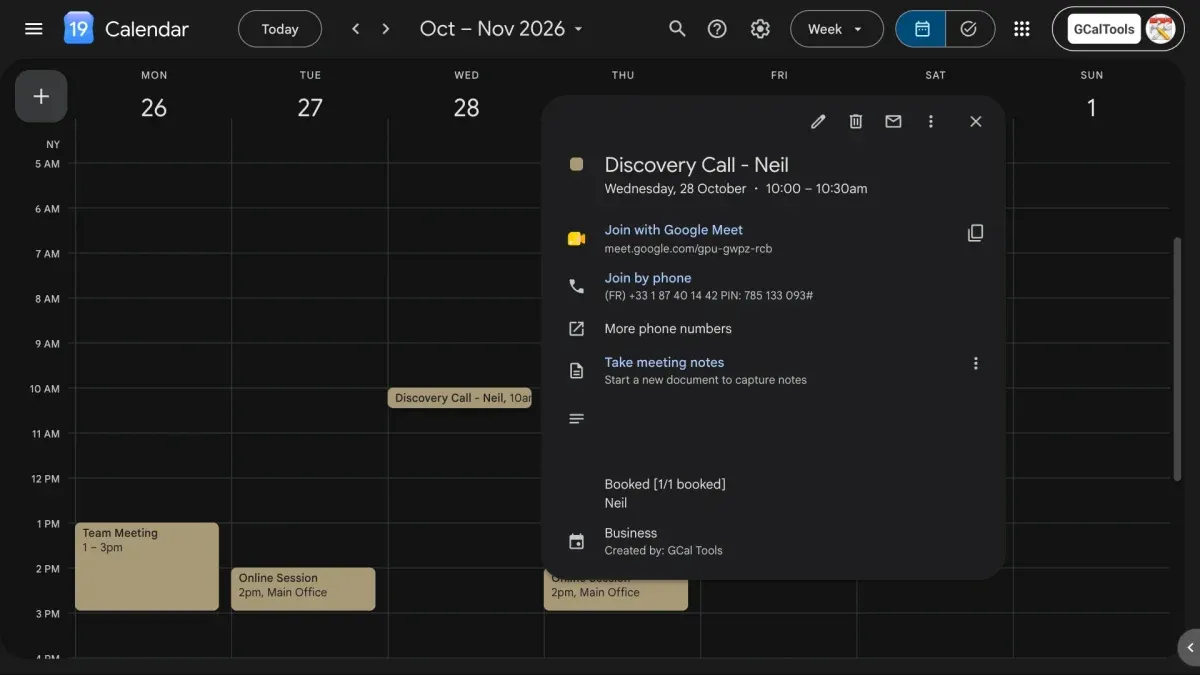
Section titled “7. The booking on your calendar”The booking is on your calendar right away, with its own Google Meet. The booker isn’t added as a guest, so nobody is notified if you move or edit the event.
8. The booker’s email and meeting link
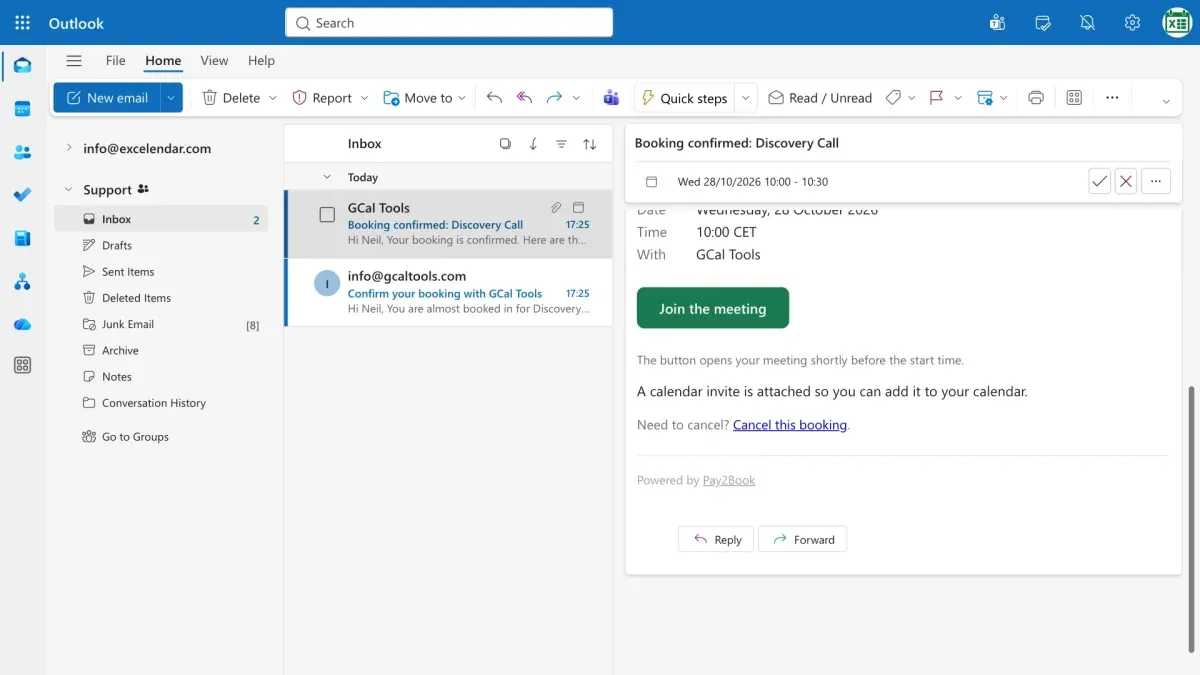
Section titled “8. The booker’s email and meeting link”Instead, the booker gets a private email with a calendar invite attached, so a copy shows up on their own calendar too. Its Join the meeting button opens whichever meeting is current, so the link keeps working even if you change or replace the meeting.
9. Manage your bookings
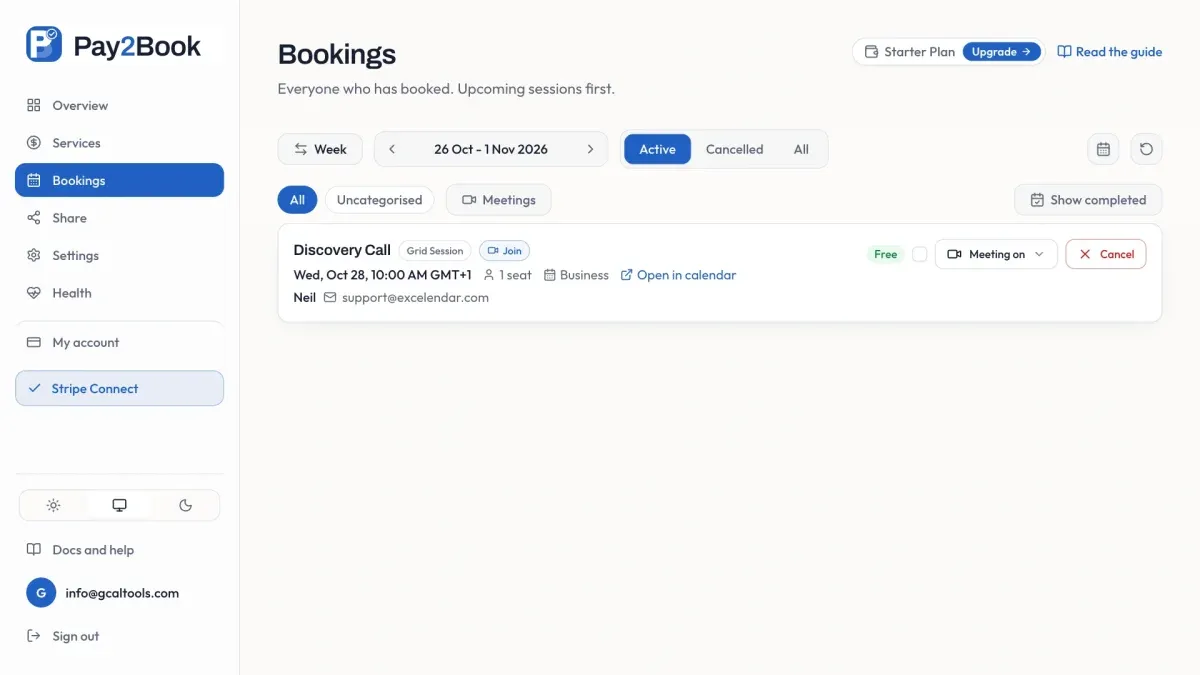
Section titled “9. Manage your bookings”In Pay2Book, Bookings lists each booker’s details, a Join button and a link to the event, and you can cancel a booking from there too.
Plans and pricing
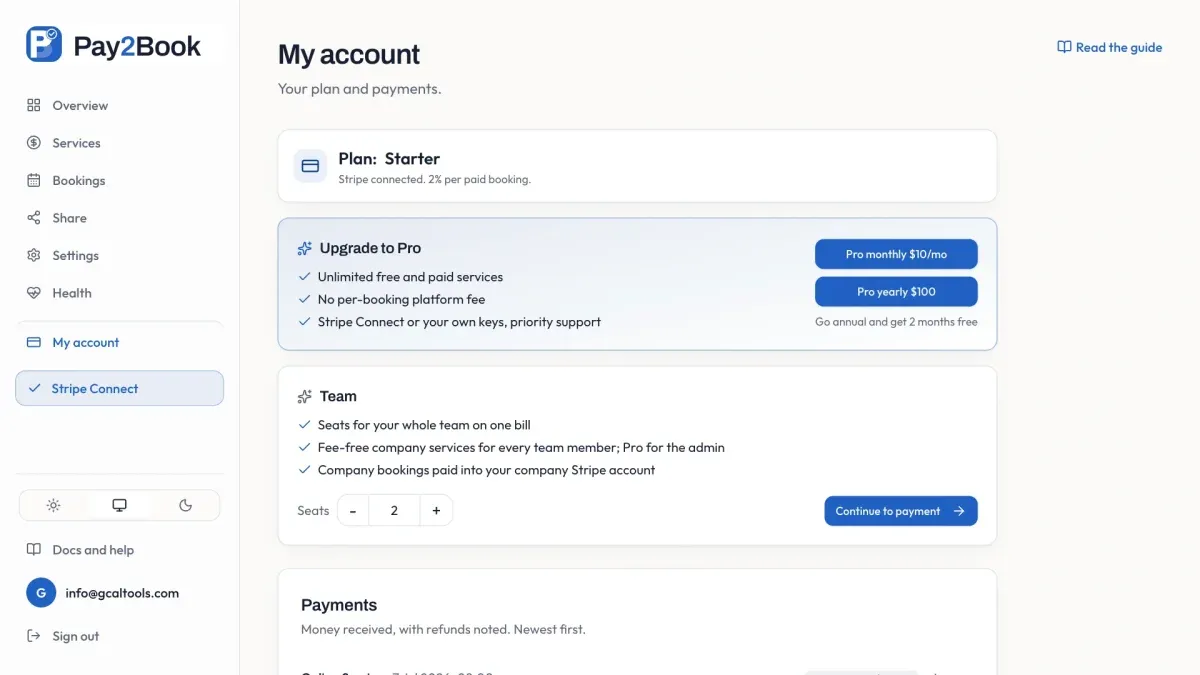
Section titled “Plans and pricing”The free plan gives you one free service. Connect Stripe for unlimited paid services and a second free one, at two percent a booking. Or go Pro at ten dollars a month for unlimited services with no fees at all. On the Team plan, colleagues provide services for the company, and all the money goes to the team admin’s Stripe account.
Try it
Section titled “Try it”Try Pay2Book for free, and follow Getting started to set up your own booking page.